ActionKit Integration Setup
Last updated: May 6, 2026
Customer Setup
Start in Switchboard
Create an API Key on Switchboard here
We recommend naming the API key something specific to ActionKit so it's clear where it's being used
Save the Account ID and the sSecret kKey in a secure place
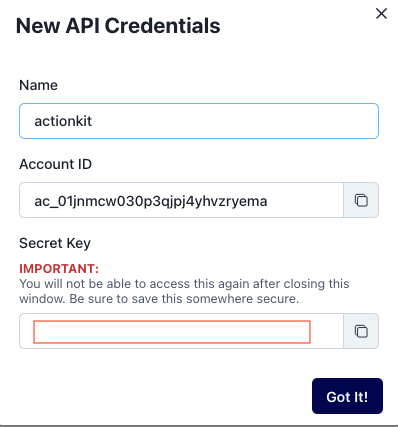
Then in ActionKit
Create a new ActionKit “staff” member - This will be how our requests to ActionKit are authenticated.
Use the following information to set this up:
Email:
developers+{orgname}@oneswitchboard.com(use your Switchboard Organization Name with no spaces). For example:developers+barbie@oneswitchboard.comUsername: we will send this to you via Signal!
Password: we will send this to you via Signal!
Contact support@oneswitchboard.com to ask a member of the Customer Experience team to create a username and password for you. Provide a cell phone # so that they can sSignal you the username and password.
If you've created an ActionKit integration in Switchboard for a campaign already and are looking to set it up for a different instance (short code, voter contact only, etc.), use the username and password that was given to you previously.
Give the user superuser access. If you would rather not give the user superuser user access then we need at least "all read" access.
Send Switchboard the a link to an ActionKit form to test on.
Create a Push API Endpoint on ActionKit
From their your ActionKit dashboard, they go to
/dash/pagesOn the right side of the page, you expand
OtherClick on
Edit Push API EndpointsClick
Add EndpointName: Switchboard
Triggers: Up to you! You can set a global trigger here (note - check with Switchboard if you want to set this up globally for anything other than "Survey")
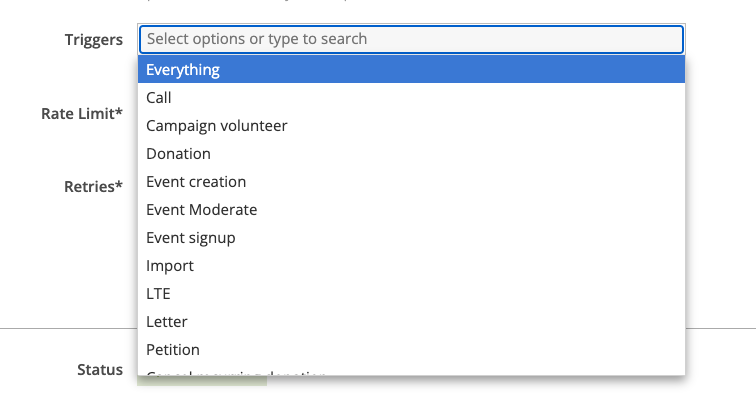
you can set this up for each individual form in under "after action info" and "Push API":


Url:
https://{api_key_account_id}:{api_key_secret}@webhooks.oneswitchboard.com/webhooks/action_kit/v1/signupThis url needs to be created using the accountIDAccount ID and sSecret kKey you saved from earlier
Make sure to remove { } from the link.
This is not done! Confirm with Switchboard that we turned on the ActionKit API for your organization on our end, and then you are good to go! Provide Switchboard with a form so that they can test that the integration is set up properly.