NGPVAN Integration
Last updated: April 28, 2026
Benefits of Integrating with NGPVAN (EveryAction)
By integrating with NGPVAN or EveryAction, you will be able to:
Pull lists directly from your NGPVAN account(s) into Switchboard
Configure labels to take an action (apply an activist code, survey response, or canvass response) when the label is applied to a phone/email in Switchboard
If you have imported a contact at least once via the NGPVAN integration (which is how we know a VANID is associated with a phone number or email address), then we will automatically add a canvass response
TEXTED(contact type "SMS Text") orCANVASSED(contact type "Bulk Email") to the associated VANID when you text or email them using Switchboard.
Request API Key + App Name
To connect your NGPVAN account with Switchboard, you first need to request an API Key.
If you have multiple NGPVAN instances (for example, VoteBuilder and NGP), you can add multiple keys to your Switchboard organization!
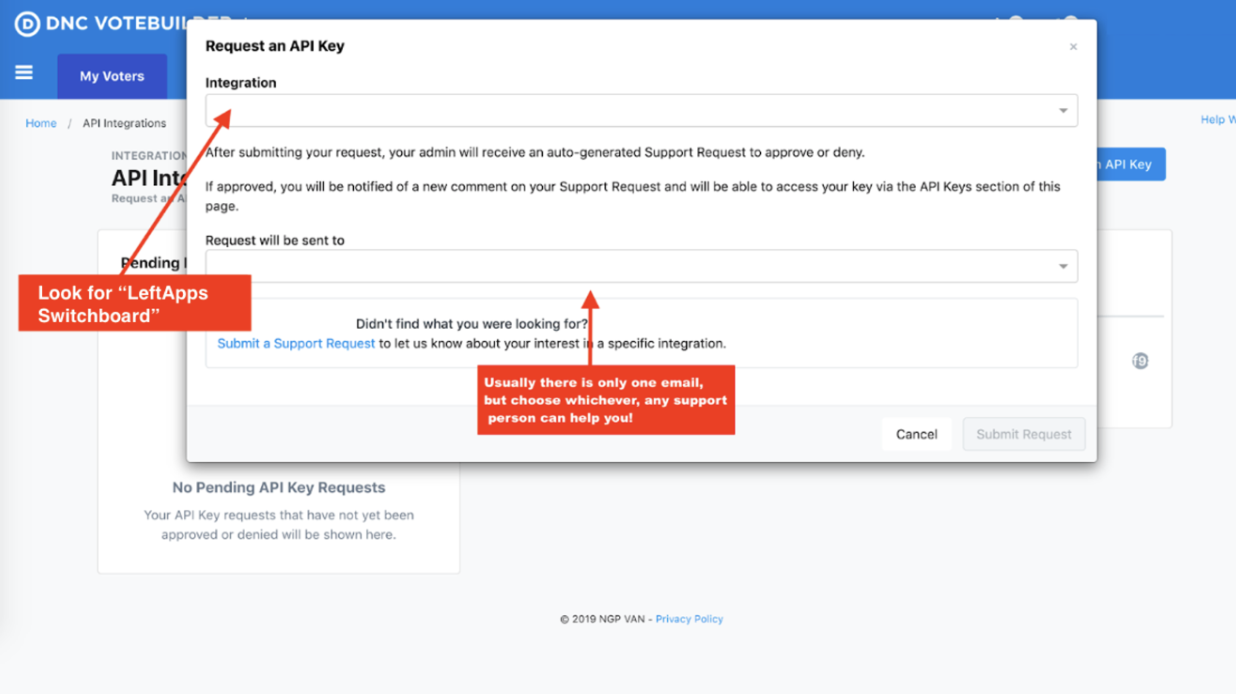
Go to the Main Menu of your Account and search “API” in the Search box in the upper lefthand corner. Click on API Integrations, then click “Request an API Key.”
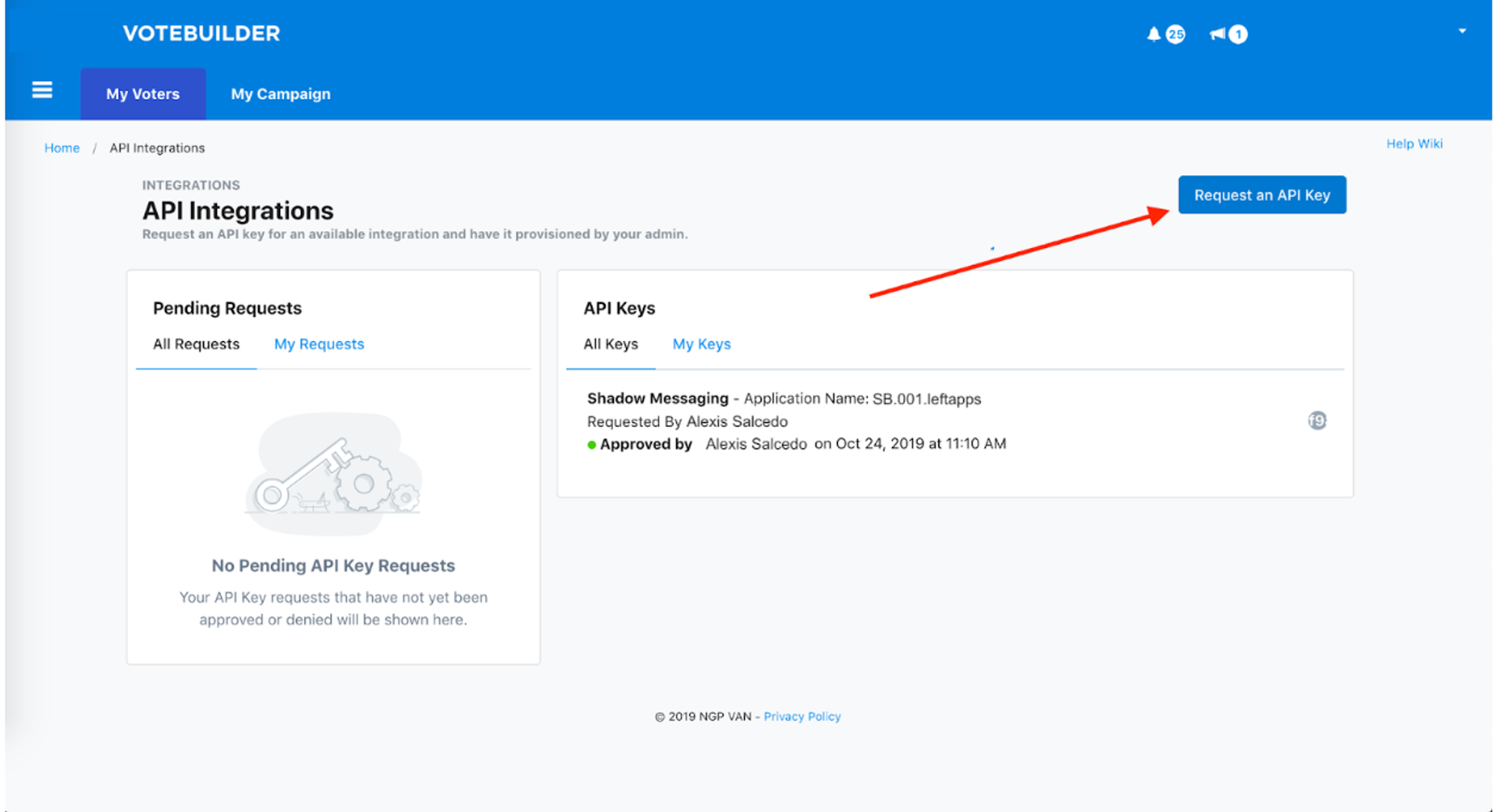
When requesting the key, request it for the "Switchboard" integration type. If you don't see Switchboard, look for “Leftapps Switchboard”.
Then select an email address to send the request to, usually your support@ for NGPVAN. Usually this is the state data director, but any email here can help you out!
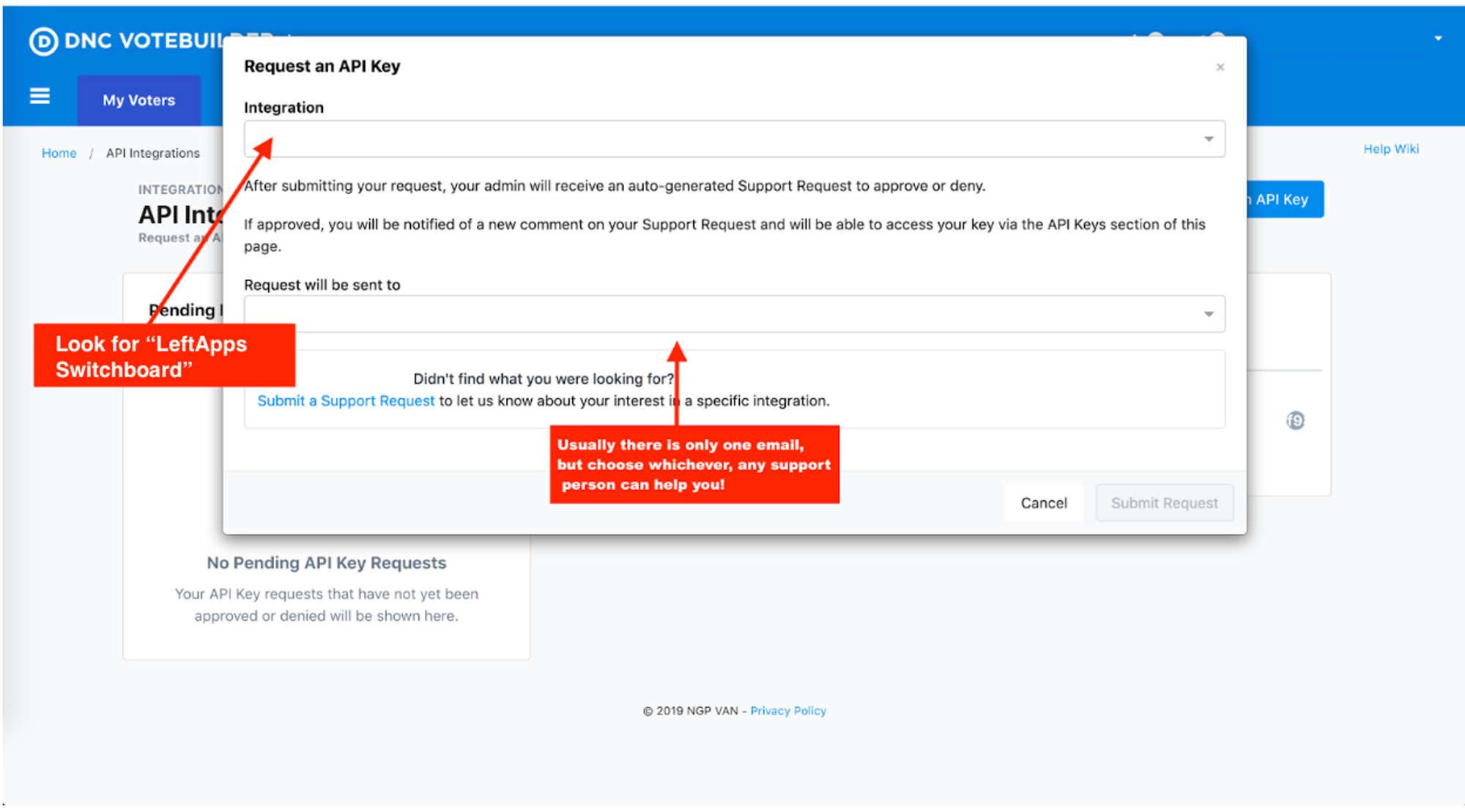
Once you request the API key via your account or email, you will have to wait for NGPVAN to get back to you. Either they will email you with the API Key information or the information will appear in the same part of your account where you requested it.
IMPORTANT: If "Switchboard" or “LeftApps Switchboard” is not popping up in the drop-down menu, email the NGP support person directly, and ask them for the Switchboard key specifically. They will know who we are and can fulfill that request for you via email.
Once you have the API key and app name, you can add it to your Switchboard account.
Add Your API Key and App Name to Switchboard
Go to Integrations tab under "settings" in Switchboard.
Click NGPVAN.
To add a new key, click Add Key at the bottom of the page.
Choose your database, and paste in your app name and API Key. Optionally, provide a description of your key. Then click Save.
App name will typically look something like
DNC.00001.leftappsorNGP01.000001.600API Key will typically be a long code with a lot of dashes.
Make your NGPVAN List Appear in Switchboard
After you've added your NGPVAN key into Switchboard, you now need to give that key access to Saved Lists in NGPVAN. The way to do that is through Folders. First you need to give the API key access to a Folder in NGPVAN, and then you can add Saved Lists into that folder that you want to be able to pull into your Switchboard account.
Log in to NGPVAN/Votebuilder
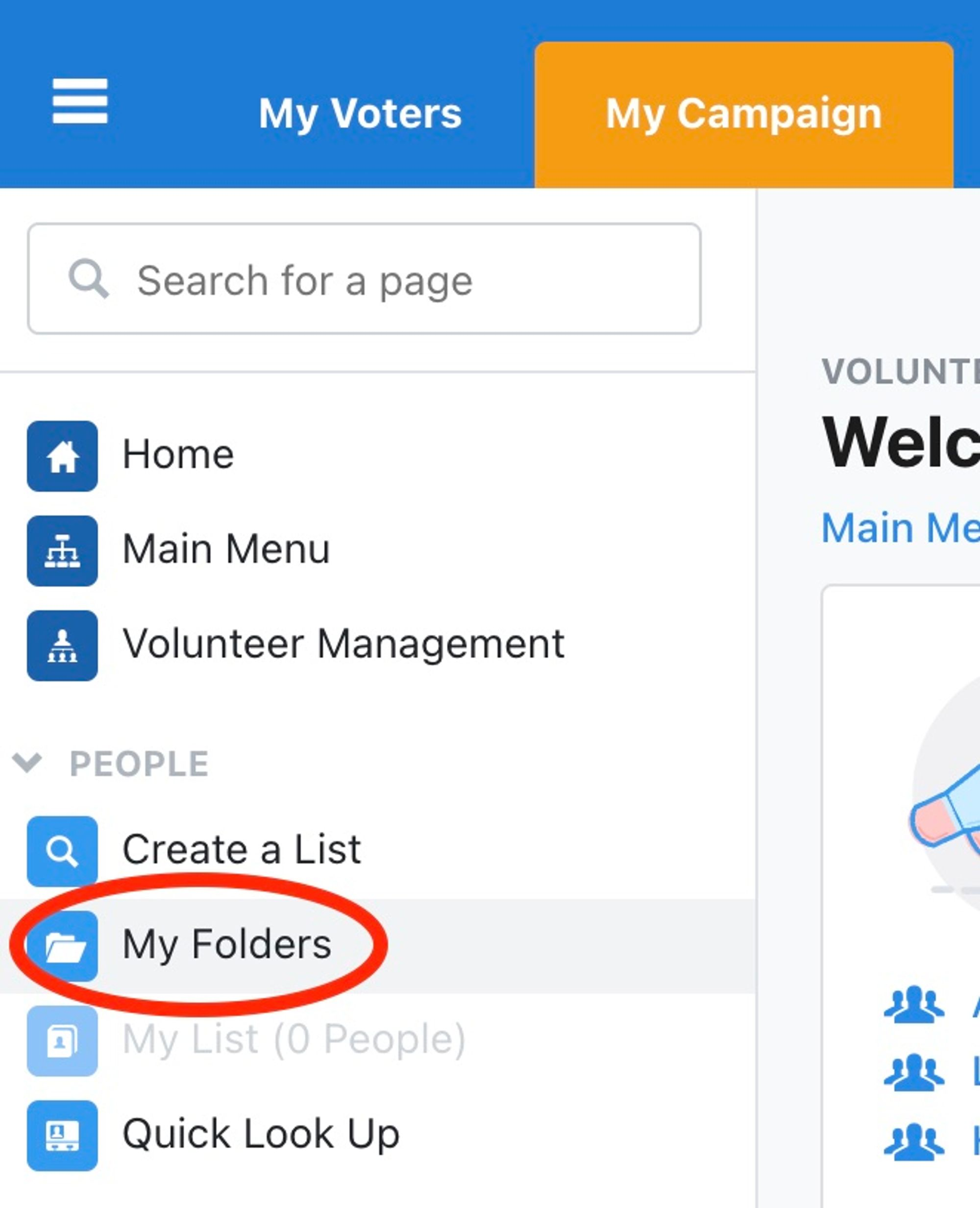
If using Votebuilder, go to MyCampaign or MyVoters depending on what you chose when you added the key into Switchboard
Then click on My Folders:
Find the folder you want to share with Switchboard and click into it.
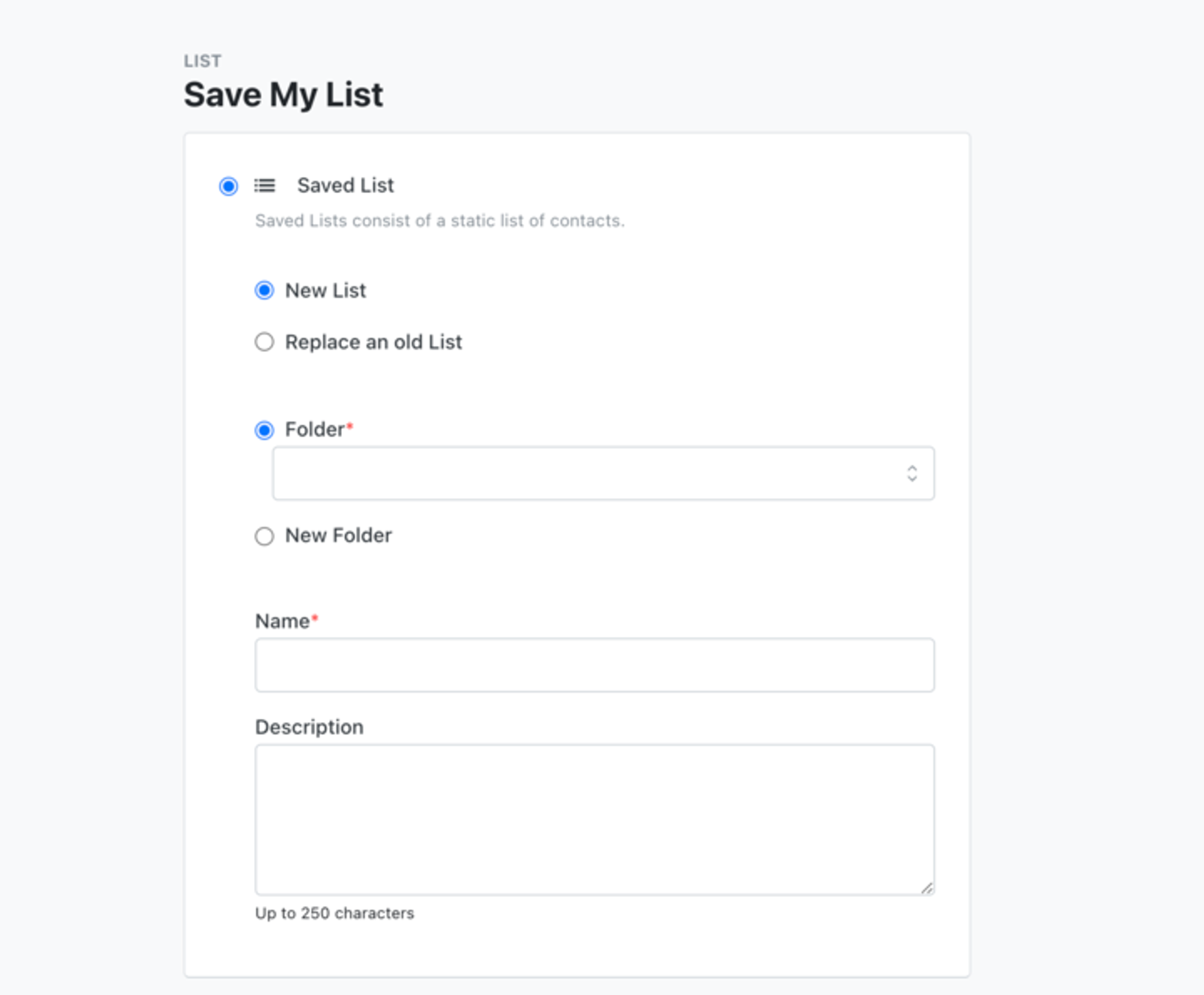
If you do NOT have a folder setup yet, you can create a new folder when saving the list:
Click Edit Folder
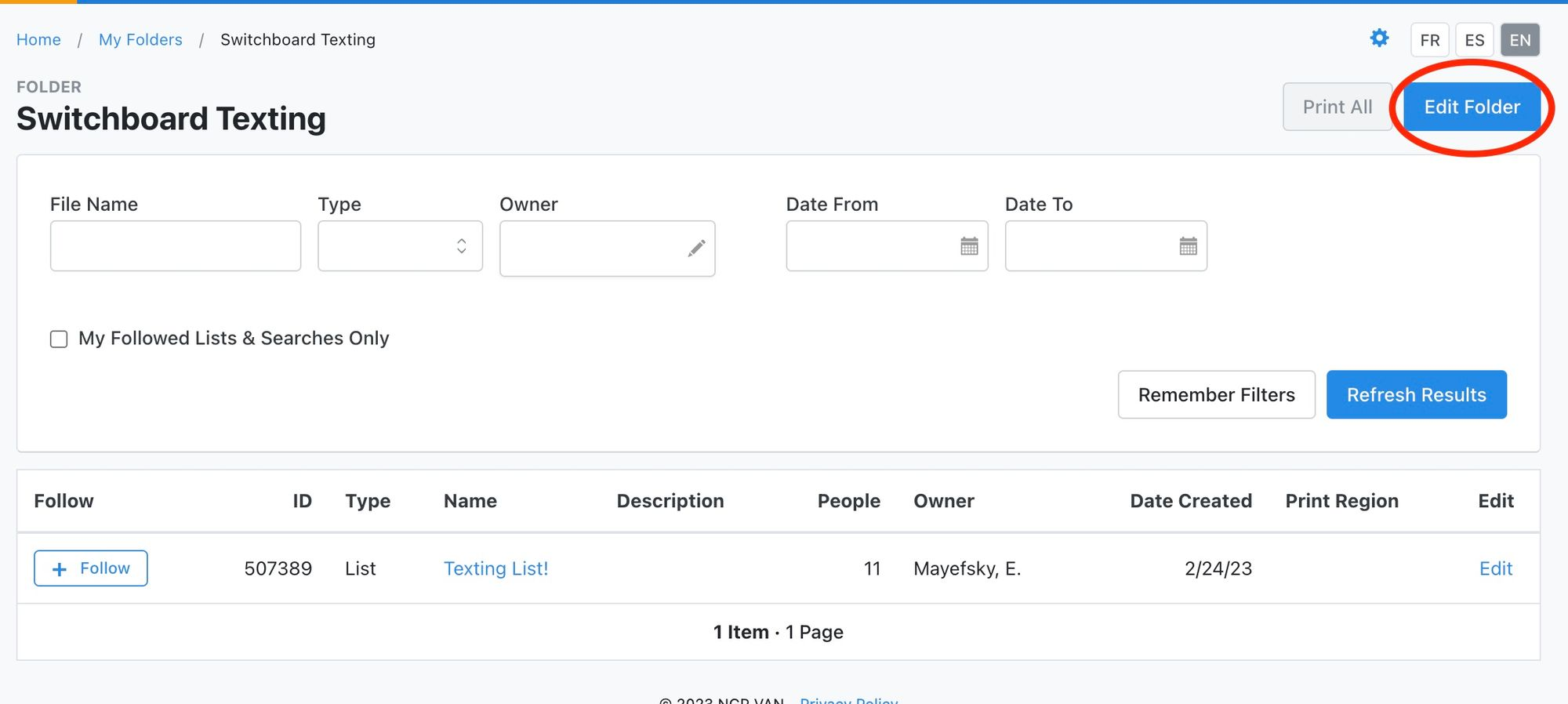
Scroll down to User Access. Look for
API User, Switchboardunder Users without Access. If that is not there, look forAPI User, LeftApps NGPorAPI User, LeftApps Switchboard. There might be one or more of these three users, depending on your NGPVAN instance. Click on all of them that you see (it will become highlighted blue) and click the “Add” button.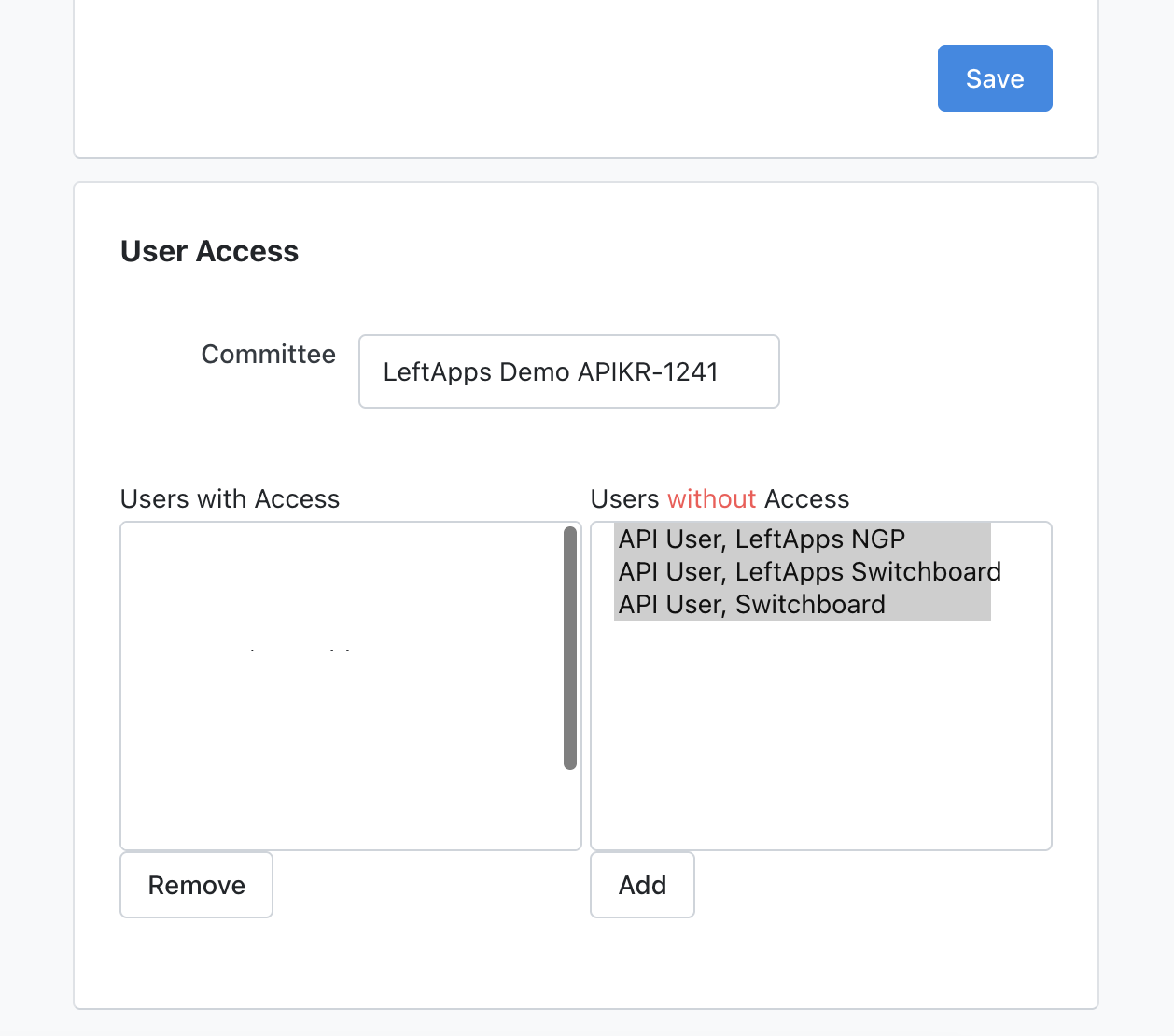
This moves
API User, Switchboardto the column with Access. If you see any of the other LeftApps/Switchboard users are there, Add them as well so they all appear on the left with Access.
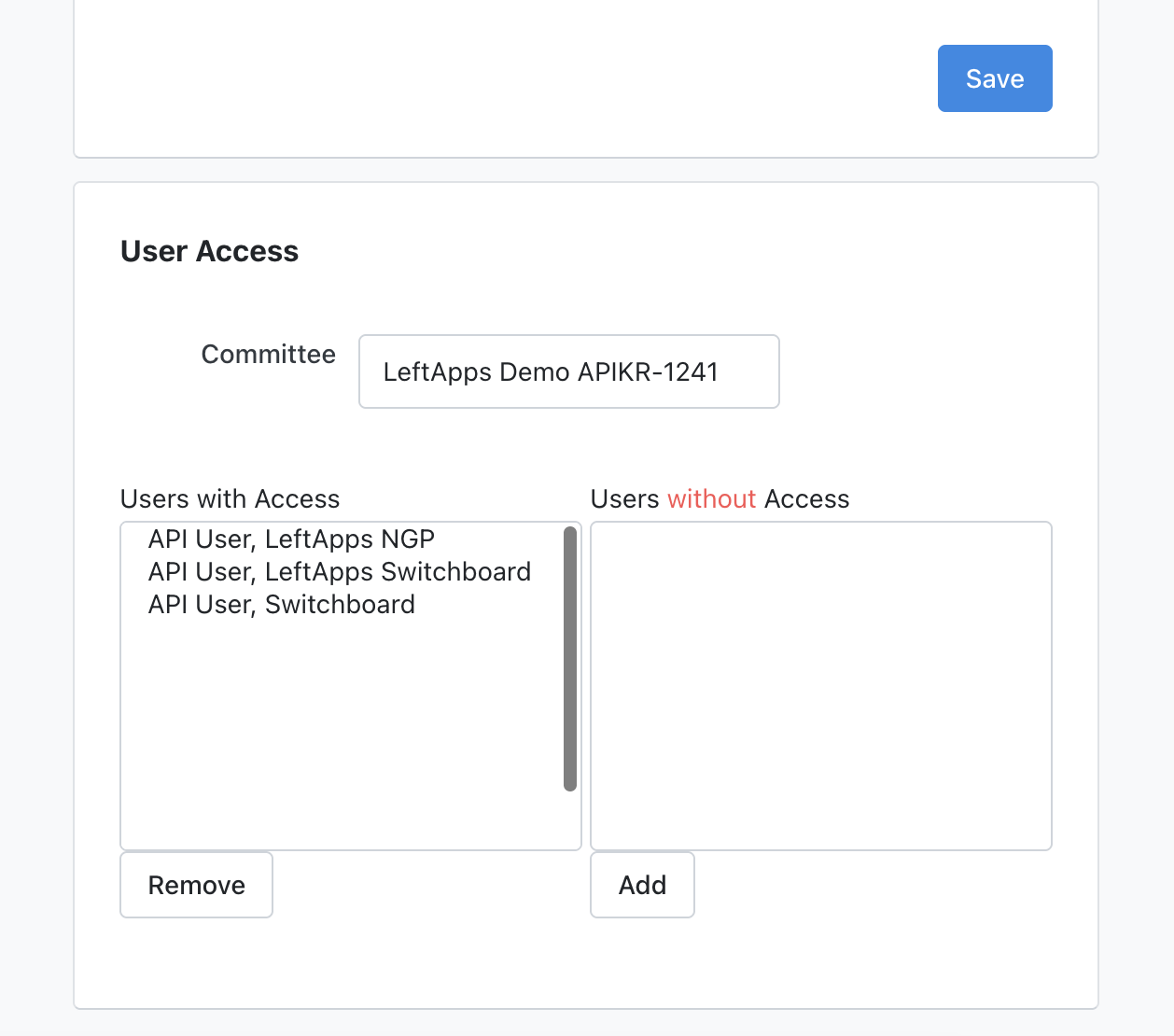
Make sure to click Save!
Now any list you save into this specific folder will appear in Switchboard.
To add a Saved List to the folder, first perform a search. Once you are ready with it, click Save List As.
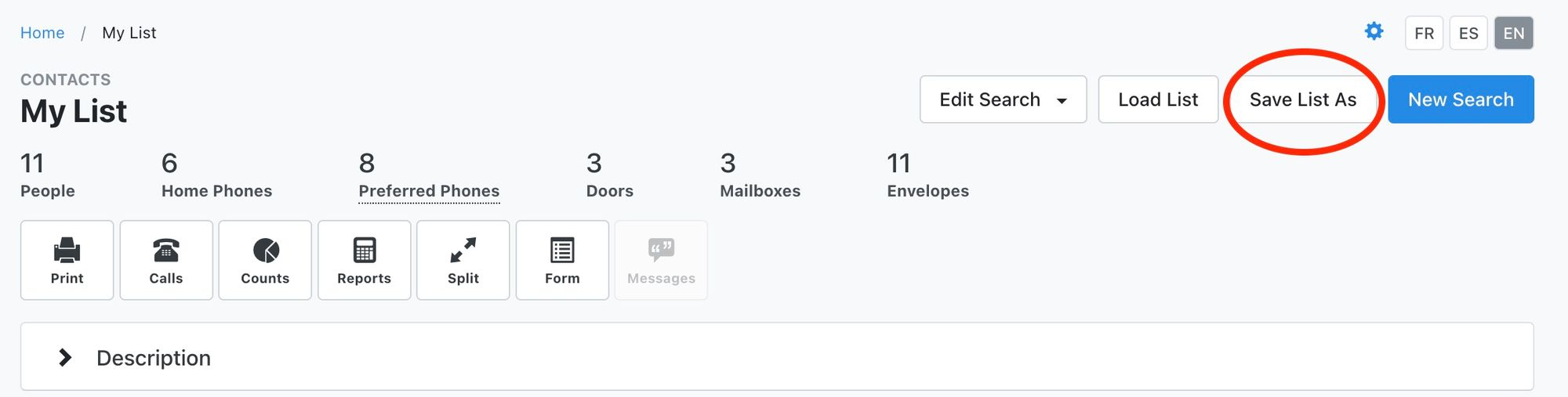
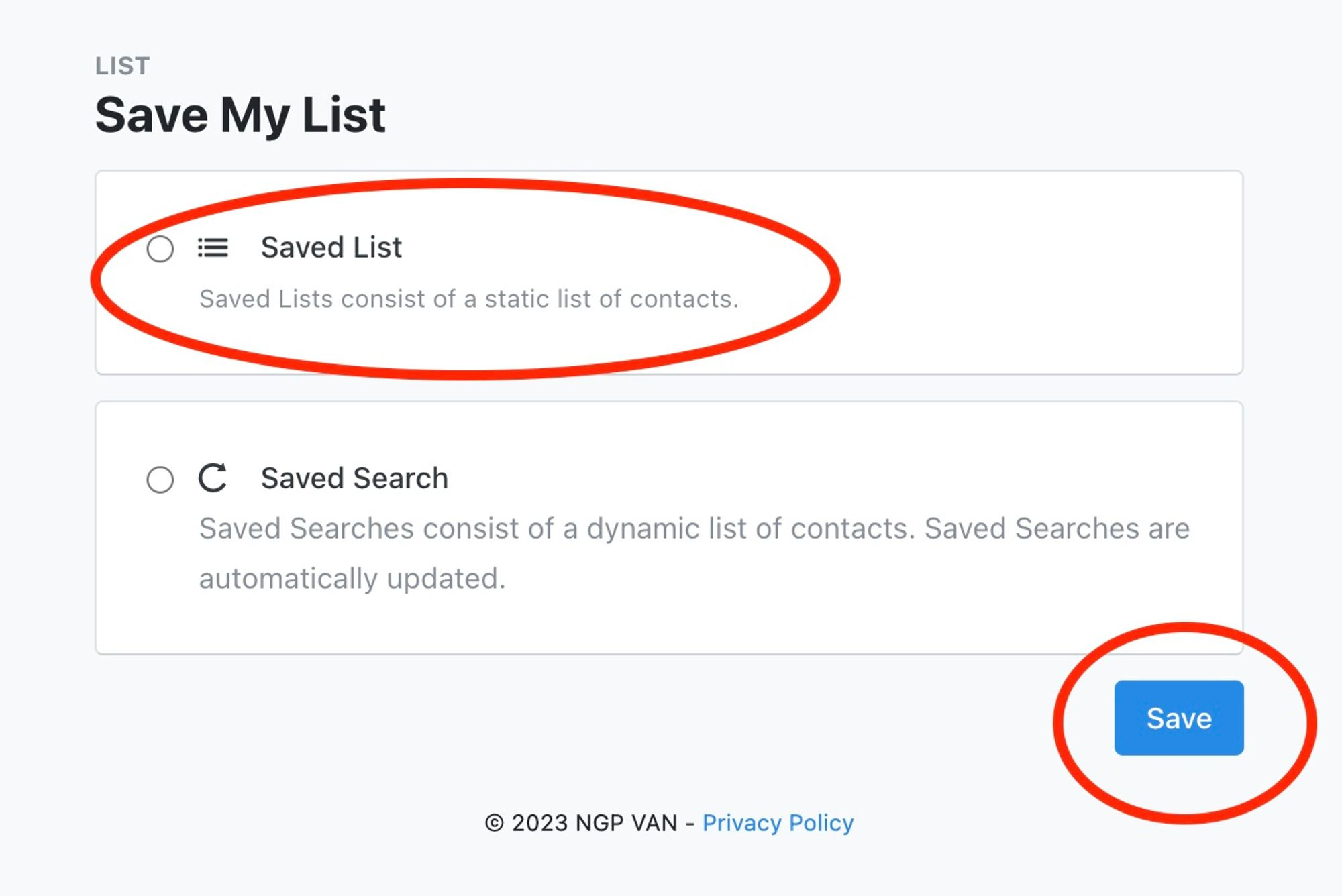
When it asks for a type, select Saved List and then click Save.
Your lists must be saved as Saved Lists. A Saved Search will not work.
Name your list and save it into the same folder from above that you shared to
API User, Switchboard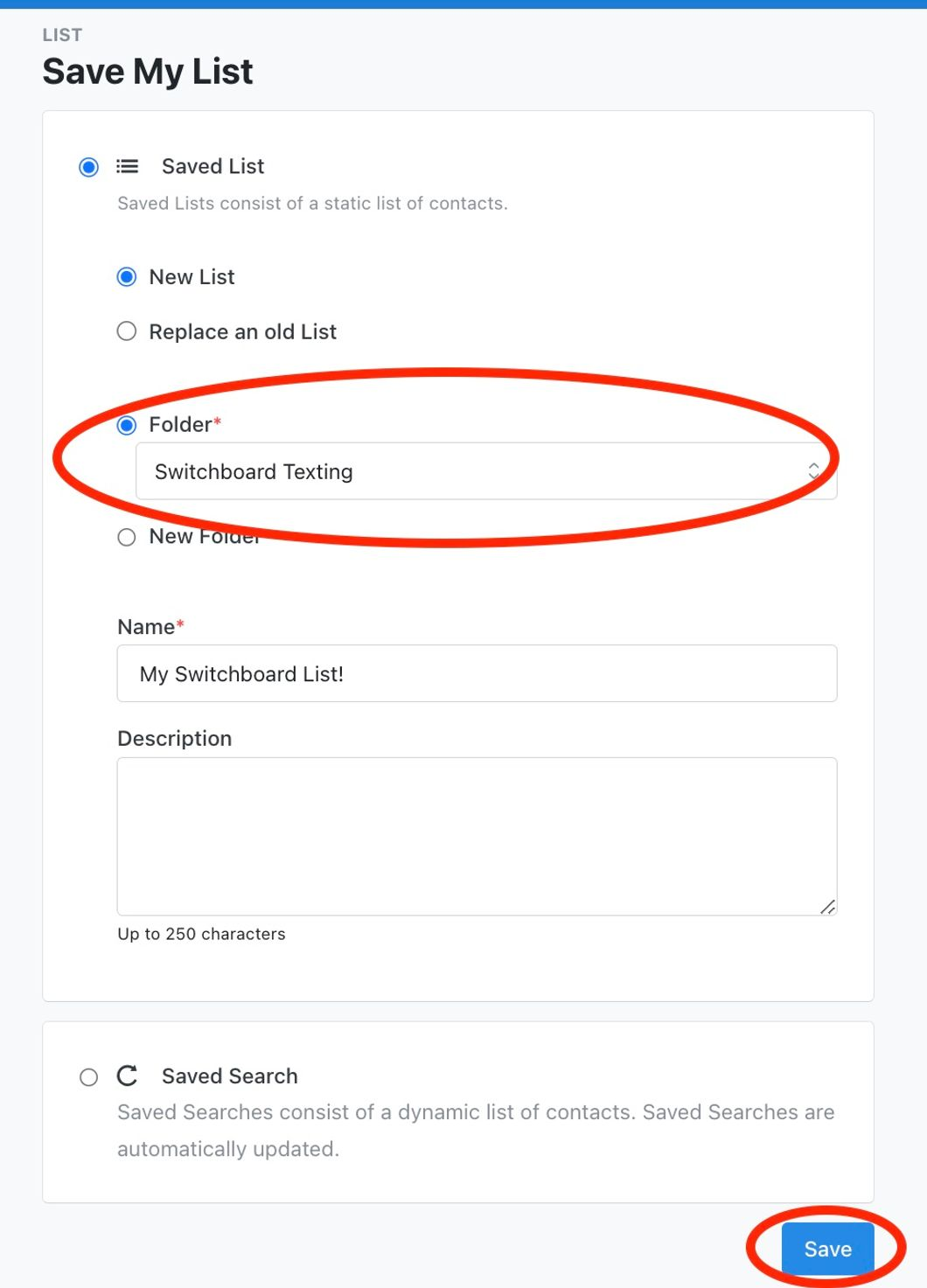
Now this list will be available for you in Switchboard!
Import Your NGP, VAN, EveryAction List Into Switchboard
After you've followed the above instructions to get your integration set up ✅ and to share your lists with Switchboard ✅, you can import your list!
Click the New Audience button from the Phone Audiences or Broadcast pages and then click Import from NGPVAN.
This will open up a new window for you to select the list that you want to import into Switchboard.
Once you click your list, it'll ask if you want to import the preferred phone number for each contact only or if you want to import all the phone numbers listed per contact
Note: If Jane Smith has two phone numbers, importing all phone numbers will create two Jane Smith contacts in your Switchboard list—one per number.
Once you've selected your list, click Create and Close. It will take a few minutes to process.
Note: the larger your list, the longer it takes to process. In some cases, choosing "all phones" takes substantially longer than only "preferred" phones.
Note: If you choose to import all phone numbers on your NGPVAN list, one individual may receive multiple texts (one to each of their numbers on the list)
Not Seeing Your List in the Above Step? Below are the Frequently Made Mistakes:
You saved your list as a saved search instead of a saved list.
In order for NGPVAN to be able to import the list to Switchboard, you must save your list as a static Saved List in the NGPVAN side.
Your integration was set up for a different database from where your Folder is.
For example, when you added your key in Switchboard you picked "MyCampaign". But the Folder you gave it access to was in "MyVoters".
You can connect multiple places in NGPVAN to the same Switchboard organization. But if you'd like to do that, you must add the keys separately into Switchboard, specifying the different API Key, App name, and database. For example, if you'd like to integrate with both MyCampaign and MyVoters, add the key into Switchboard twice, once specifying MyCampaign and once specifying MyVoters.
You did not share the folder to the Switchboard API User.
Go back to the section Make your NGPVAN List Appear in Switchboard to make sure this is done correctly!
Still not seeing your list? Email support@oneswitchboard.com and we will help you troubleshoot!
Sometimes creating a new folder and sharing that again following the instructions above will help.
Create and Sync Labels with NGPVAN
Labels can be used to tag contacts with information. For example, you may use Grassroots Donor to tag contacts that give under $100 to your organization. You can then use these labels in various parts of Switchboard. On the Phone Audiences page, you can create a new search that includes/excludes contacts with specific labels. On the Message Threads Page, you can filter contacts to just those with specific labels.
If your NGPVAN/Votebuilder account is connected to Switchboard, you can configure a label to take an action (apply an activist code, survey response, or canvass response) when it is applied to a contact.
Create a New Label
From the Home Page, click Labels.
Click Add Label.
A new window will pop up. Name your label and click Submit when you are done.
Labels are also automatically created for: keywords, form responses, and opt-outs.
Create Action to Sync Label with NGPVAN
Labels can only sync back to NGPVAN contact if that contact has been imported directly from NGPVAN at least one time. They will not sync back if you only upload a list as a CSV with VANIDs attached.
Click on the label you want to add an action to.
Under Update Actions, you can choose to apply an activist code, apply a canvass response, or apply a survey response.
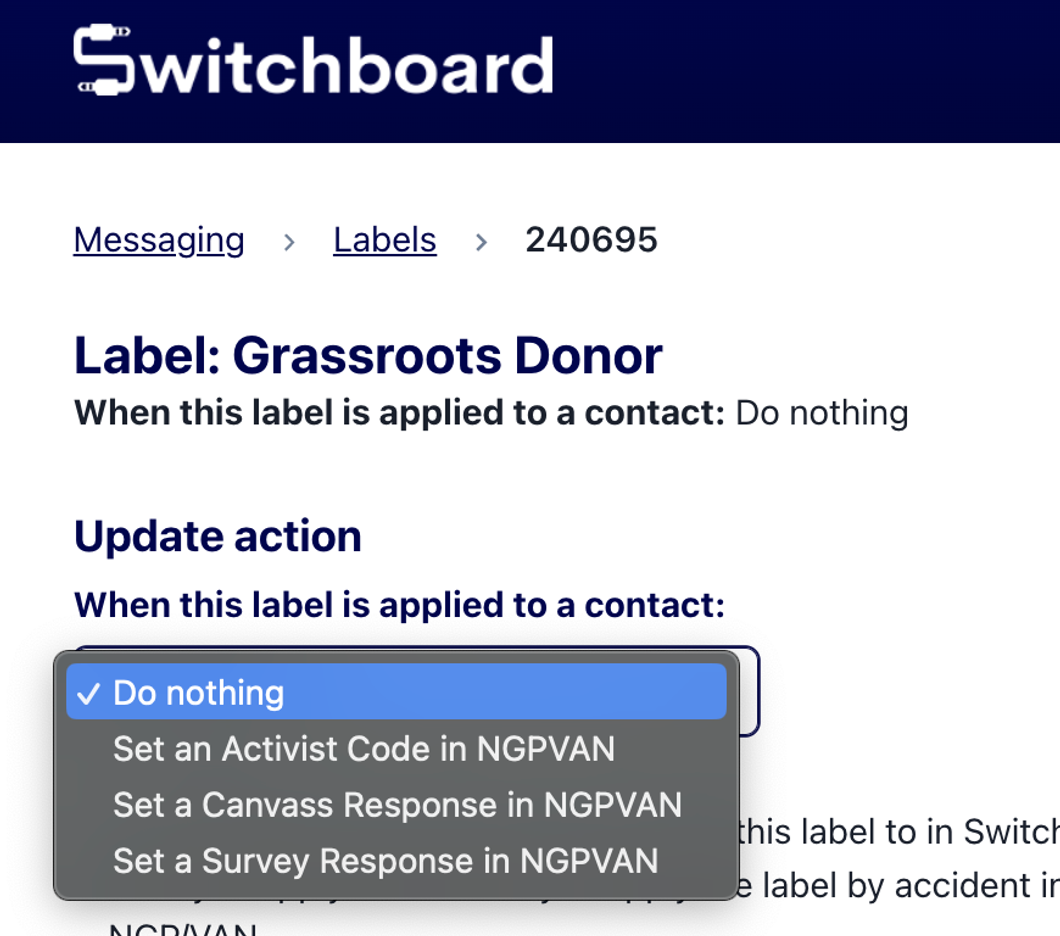
After you select the action you’d like to take, another drop down will populate where you can pick which specific activist code/survey response/canvass response you’d like to take. See examples below:
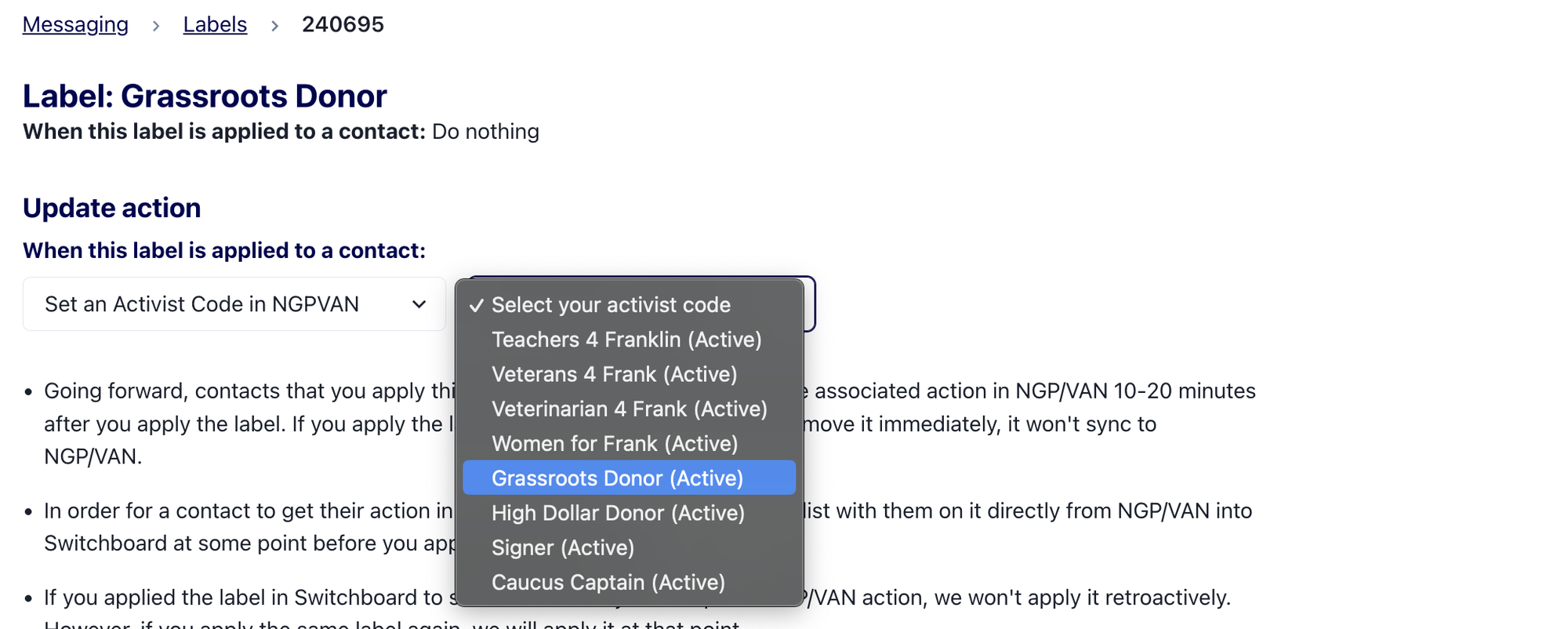
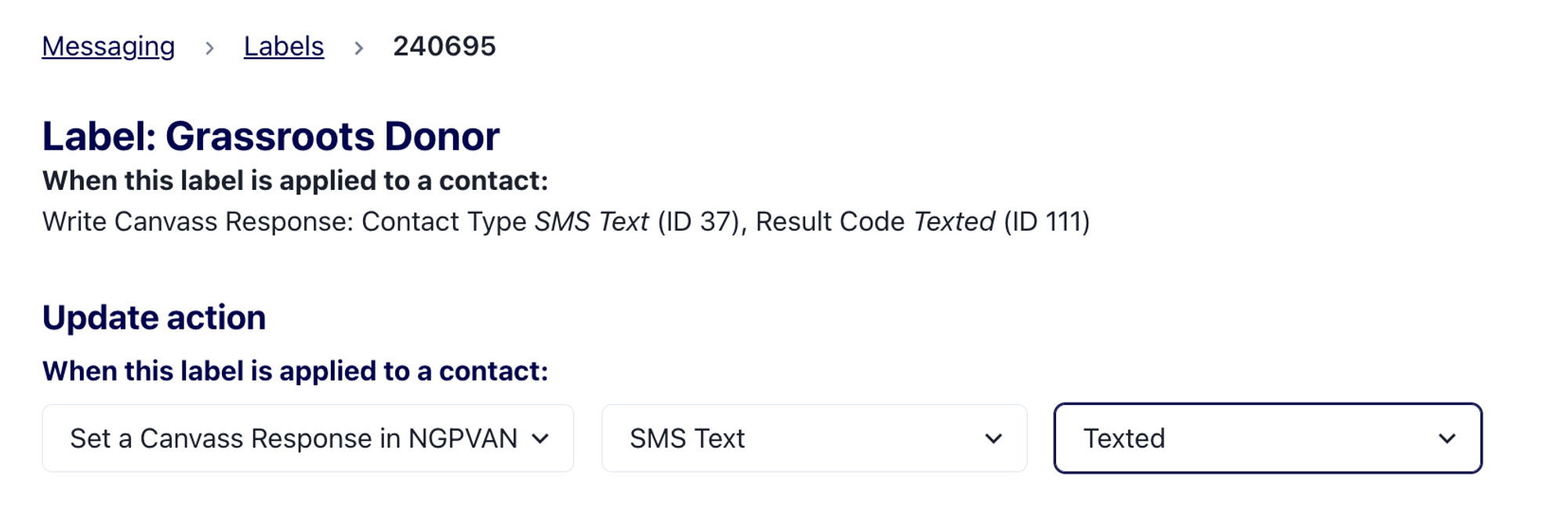
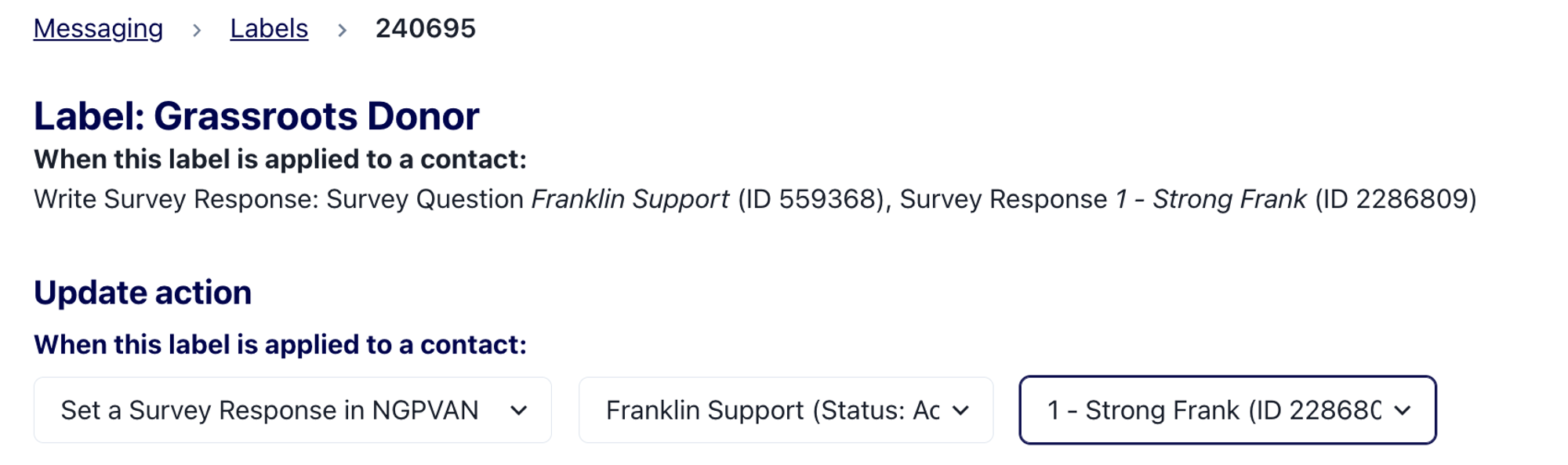
After you select the action, moving forward, the contacts you apply these labels to in Switchboard will get the associated action in NGPVAN within about 10-20 minutes after you apply the label. If you apply the label by accident and remove it immediately, it will not sync to NGPVAN.
If you applied the label in Switchboard to someone before you set up this NGPVAN action, we won't apply it retroactively. However, if you remove and then apply the same label again, we will apply it at that point.
FAQ: How Does Switchboard Data Appear In NGP/VAN?
What does Switchboard need to send data automatically to my NGP/VAN accounts?
In order for Switchboard to automatically send data back to your NGP/VAN accounts, you need to have set up the NGP integration in Switchboard AND imported a list directly from NGP/VAN of the phone numbers you want to have data sent back to. You cannot just upload a CSV file with VAN IDs attached in order for Switchboard to send data back to NGP. The phone number and VAN ID must be imported directly from an NGP list import via the NGP integration in order for data to sync from Switchboard back to NGP.
Switchboard Tip: Upload your entire universe once you get your integration set up to make sure all of your data gets synced back to NGP/VAN properly! Once a phone number is imported directly from an NGP/VAN list, we'll store the associated VANID indefinitely. This means that even if you later upload that phone number using a CSV or other method, and then send messages to it, Switchboard will still use the same VANID and continue to send data back to NGP/VAN for that number.
When I text someone in Switchboard, how does that show up in NGP/VAN?
When you send a text to a phone number, we automatically log a canvass response with the type SMS_TEXT and result TEXTED to ALL VAN IDs mapped to that phone number in Switchboard. Depending the volume of traffic on both Switchboard and NGP, you can expect that to show up in NGP VAN within an hour or two.
If I have more than one NGP/VAN committee connected to one Switchboard account, how does the text sent map to NGP/VAN?
A phone number in Switchboard can be associated with multiple NGP/VAN IDs when imported from multiple NGP/VAN committees. Switchboard tracks phone numbers first and then what van IDs are connected and the source of where the number came from (ie. Switchboard MyVoters - GOTV List). If you import a phone number from two different committees, that phone number will have two mappings; one for each NGP/VAN instance.
When a number is texted, we will automatically apply the canvass response with the type SMS_TEXT and result TEXTEDto ALL VAN IDs mapped to that phone number in Switchboard. This means, if you have several committees connected (ie. Switchboard MyVoters and Switchboard MyCampaign) and you have imported a phone number via both committees, when you text them in Switchboard, they will be marked with the canvass response type SMS_TEXT and result TEXTED in the MyVoters and MyCampaign side.
If I have more than one NGP/VAN committee connected to one Switchboard account, how does label data map back to NGP/VAN?
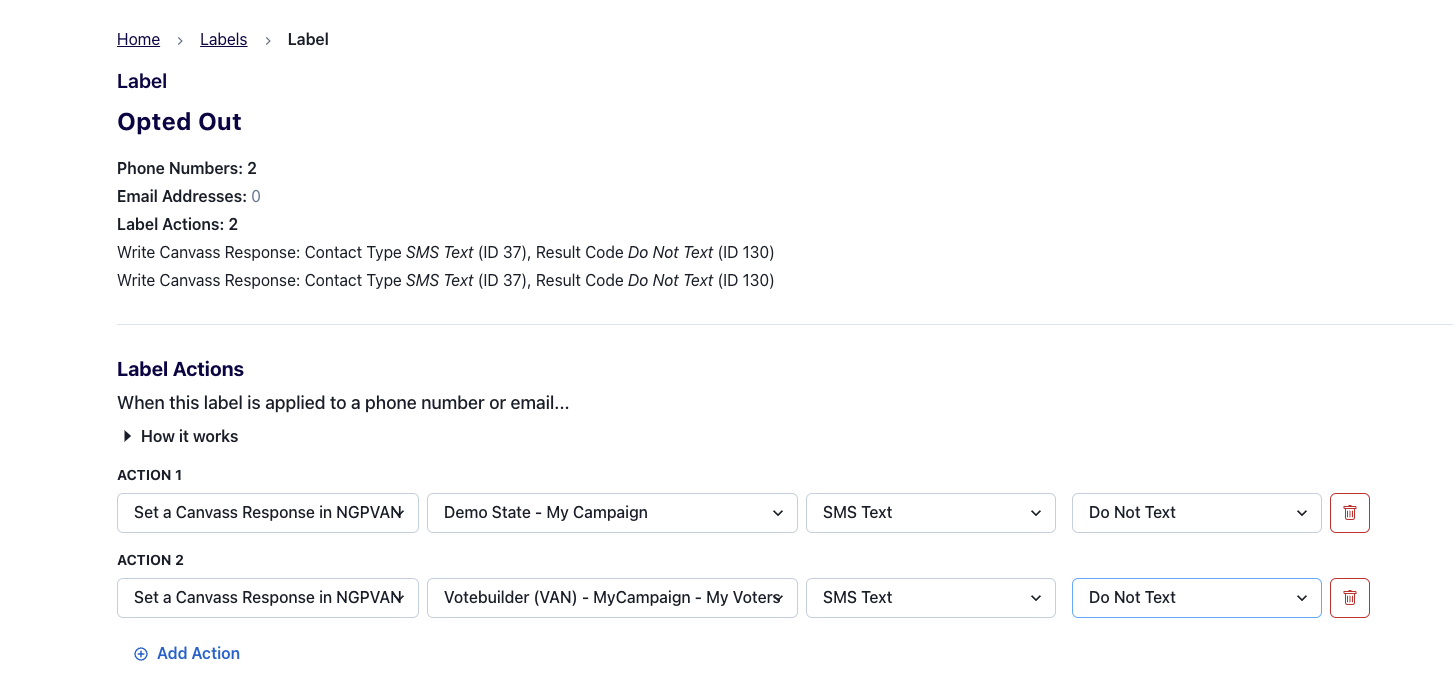
When mapping a label back to NGP/VAN, you choose which key/integration the action is associated with:
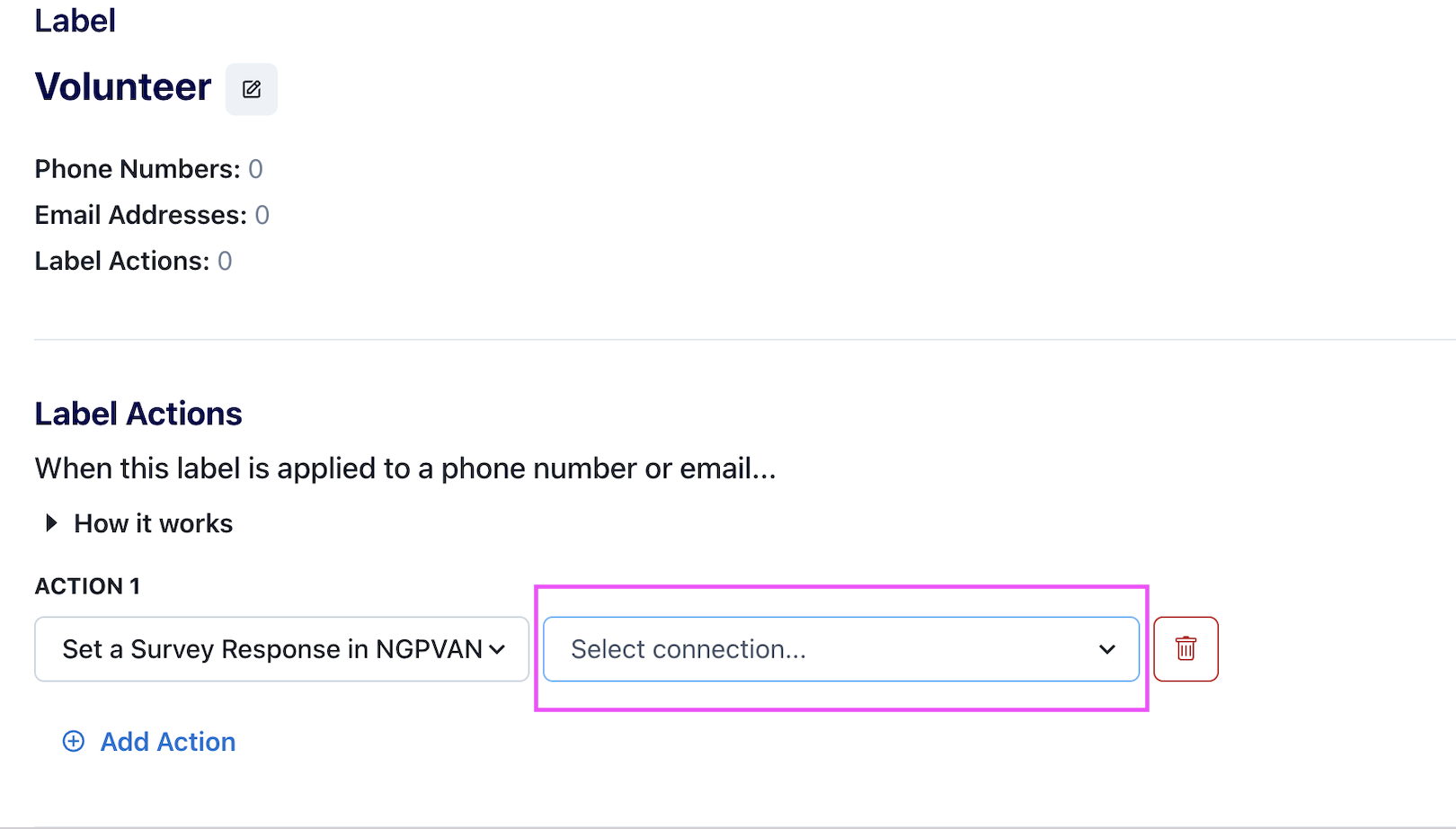
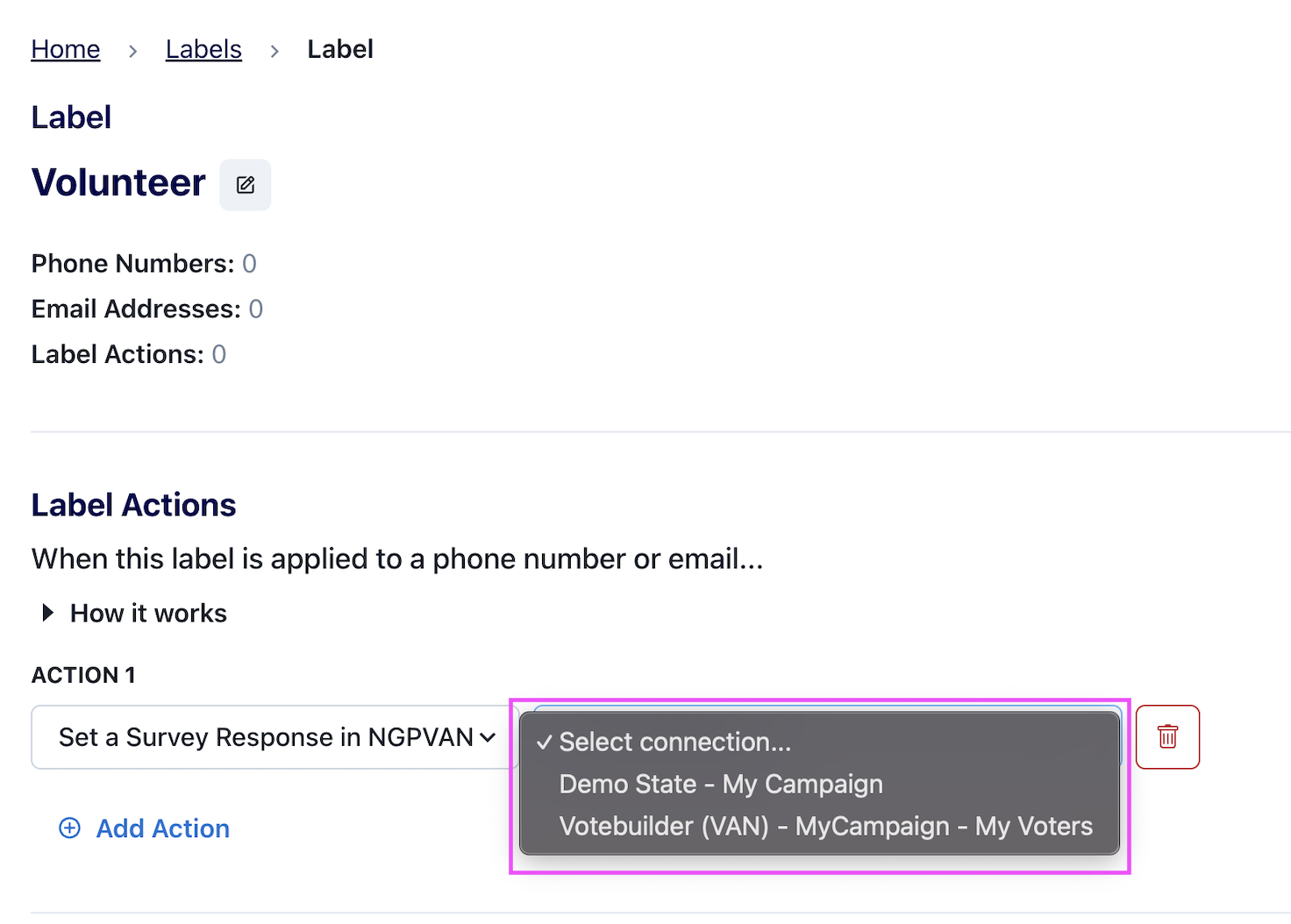
We will only map this data back based off what is set in the action. It takes about 10-20 minutes for this data to be sent back to NGP/VAN from Switchboard. So, if you imported a phone number from MyVoters and MyCampaign, but a label is only associated with a Survey Question from MyCampaign, we will only send that Survey Question data back to MyCampaign.
When someone opts out from my texts in Switchboard, how does that show up in my NGP/VAN?
Every Switchboard account has a system created Label called "Opted Out" that is applied to anyone who opts out from your Switchboard program. You can create an action associated with that label the same way you do with your other labels. You can set one or more actions - if you have multiple NGP committees integrated with one Switchboard account it is helpful to send this data back to all committees. See example:
Remember, in order for this data to sync back to your NGP/ VAN committees automatically:
You need to have set up an NGP/VAN integration in Switchboard.
You need to have imported the phone number + VAN ID directly to Switchboard via importing a list directly from NGP/VAN of the phone numbers you want to have data sent back to. You cannot just upload a CSV file with VAN IDs attached in order for Switchboard to send data back to NGP.
You need to have set up the action BEFORE the person opted out.
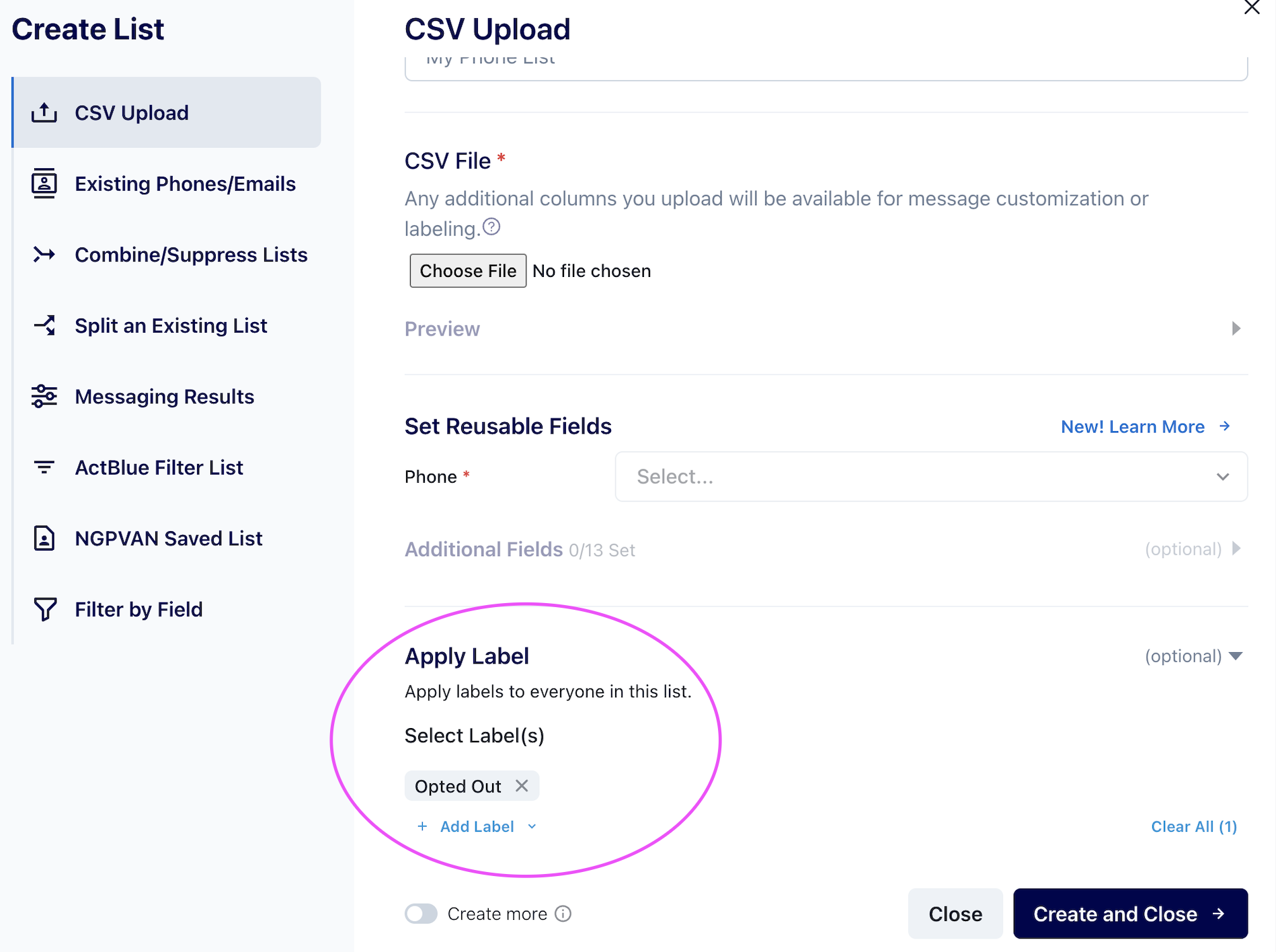
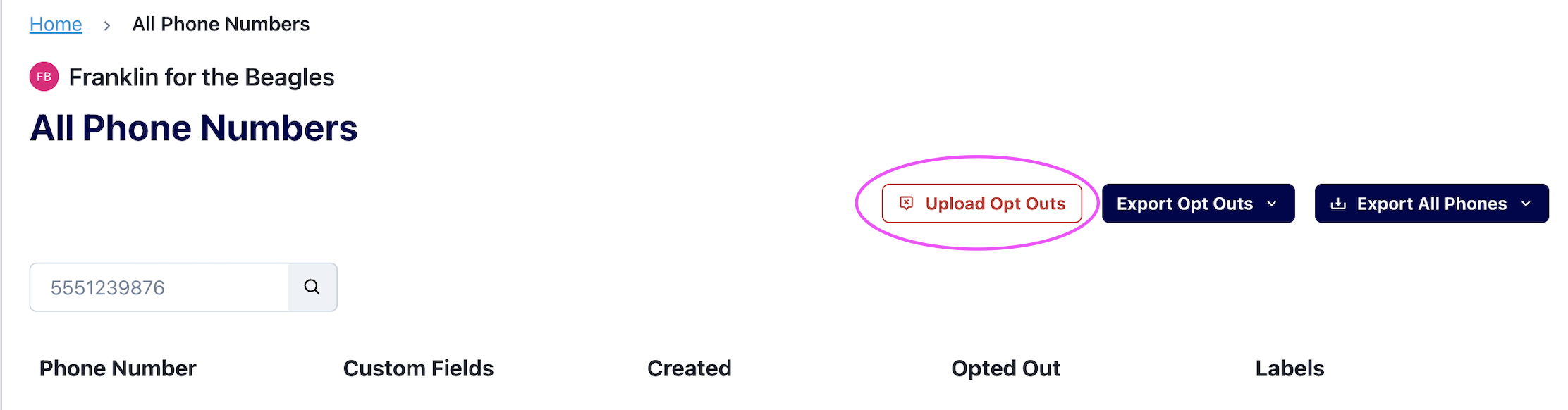
Switchboard Tip: You can always bulk apply the system created label again by uploading a CSV of opt outs by either uploading a csv and applying the label "Opted Out" (see screenshot below) or by uploading opt outs in the all phone numbers page (see second screenshot below).
What to do if Your API Key Expires
Request a new API key from NGPVAN: Go to the Main Menu of your Account and search “API” in the Search box in the upper lefthand corner. Click on API Integrations, then click “Request an API Key.” Once you request the API key via your account or email, you will have to wait for NGPVAN to get back to you. They will either email you the API Key information or the information will appear in the same part of your account where you requested it. Once you have the new API key and app name, you can add it to your Switchboard account.
Next, you can go into your Switchboard account. Click the top left corner > Organization Settings.
Click into the Integrations tab and scroll down to your current NGPVAN key. Next, click Disable.
Click Disable again to confirm this decision in the pop up window.
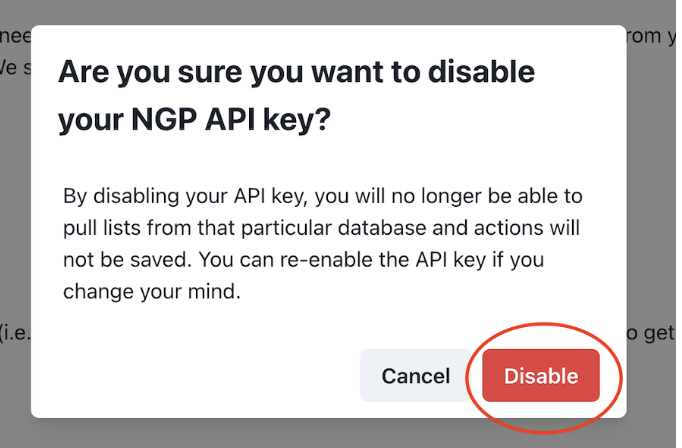
You will then add your new key as usual.
Switchboard Tip: You can change the name of your old NGPVAN key so you don’t get confused in the future with multiple keys, you can click the pencil icon in the old NGPVAN key and rename it.
Can I remove a saved list from my NGP/VoteBuilder folder after I've already imported it into Switchboard?
Yes! Once a list has been imported into Switchboard, all contacts from that list live in your Switchboard account independently of VoteBuilder. Removing the list from the NGP folder (or moving it out of the folder shared with the Switchboard API user) will not affect:
Any contacts already created in Switchboard from that list
Any broadcasts that have already been sent to those contacts
Any VANID connections or canvass responses that have been recorded
The only change is that the list will no longer appear in the dropdown when you go to import a new audience from NGPVAN. This is actually a great way to declutter the import menu if it has grown too long — simply move old lists out of the shared folder in VoteBuilder once you're done importing them into Switchboard.