Personalizing Your Messages
Last updated: September 30, 2026
Switchboard custom fields are built using Jinja templating! If you ask any AI assistant to help you with “Jinja templating” that is really useful for troubleshooting 🙂
Using Custom Fields
Use the format
{{ custom_field }}to dynamically insert custom fields.See here for the list of reusable fields available to use in message customization.
Using Conditional Statements
You can also use if statements. For example:
Can you chip in
{% if previous_donation and previous_donation > 20 %}$20{% else %}$5{% endif %}today?Hi
{% if first_name %}{{ first_name }}{% else %}friend{% endif %}!
Note: if you want to check if a custom field has an exact value, use == (two equals signs) instead of just one. For example:
Thanks for being a
{% if total_donations == 1 %}one-time{% else %}repeat{% endif %}donor!
You can also use or statements if you just want to have a backup option for a blank field, or if you're combining two lists with differently named custom fields. For example:
{{sb_first_name or 'friend'}}will showsb_first_nameif it's present, or the wordfriendif it isn't.{{sb_first_name or firstname or 'friend'}}will trysb_first_namefirst, then tryfirstname, then usefriendas a last resort if both are missing.
If you’re using a previous donation amount to suggest an ask, you may want to set a maximum or minimum so your message doesn’t ask for an unusually high or low amount.
For example, the below example:
Uses the most recent donation amount if it exists
Falls back to
$10if that field is blankBut also caps the ask at
$100and raises very small asks to$5
${% if ((sb_most_recent_donation_amount or 10) | int) > 100 %}100{% elif ((sb_most_recent_donation_amount or 10) | int) < 5 %}5{% else %}{{ sb_most_recent_donation_amount or 10 }}{% endif %}
This means:
If
sb_most_recent_donation_amountis blank, use10.If the amount is greater than
100, show100.If the amount is less than
5, show5.Otherwise, show the donor’s most recent donation amount (formatted as an integer)
You can replace 100, 5, or 10 with the maximum, minimum, or fallback amounts you want to use.
Use elif for “else if” logic — not else if.
Using Math Operations (like <, >, +, )
If you are using a custom and/or reusable field that does NOT have 100% coverage over your list, some of these more complex statements may fail. If you are using any field in a math operation (like <, >, *) you will need to make sure the value exists. For example:
${% if sb_max_amount_donated %}{{ (sb_max_amount_donated * 0.75) | sb_money}}{% else %}5{% endif %}
{% if sb_max_amount_donated %} - this part checks to make sure there is real value for the field sb_max_amount_donated, otherwise it will use the "else" section (in this case 5). If you were to not include the "if" part, when we try to render the message for a phone number with a missing sb_max_amount_donated, the * part would cause the message to fail.
How do I check coverage of fields in my list?
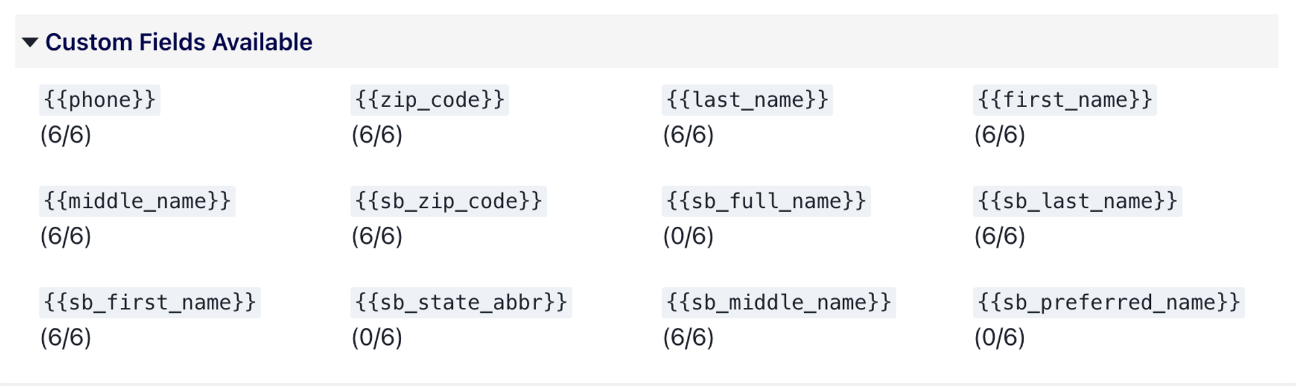
When drafting your message, under “custom fields available” you can see coverage ratios like this:
Formatting
Formatting Names
If you'd like to make sure fields are formatted with proper capitalization, use the keyword title.
Hello
{{sb_first_name | title}}
This will turn sb_first_name values like jane or JANE or JaNe all into Jane.
Formatting Money
If you'd like to display a money amount, you can use the keyword sb_money to make sure the number is formatted properly. If the field is a full dollar amount, we will not include the .00. So 100.5 becomes 100.50, but 100.00 becomes 100. For example, for the custom field previous_amount, you can write:
Can you chip in $
{{ previous_amount | sb_money }}today?
Formatting Dates
If you'd like to display a date in a more readable format, you can use the keyword sb_date with the date format you want. For example, if sb_most_recent_donation_date is 2026-09-18:
{{ sb_most_recent_donation_date | sb_date("%B %-d, %Y") }}→September 18, 2026{{ sb_most_recent_donation_date | sb_date("%b %-d, %Y") }}→Sep 18, 2026{{ sb_most_recent_donation_date | sb_date("%-m/%-d/%y") }}→9/18/26{{ sb_most_recent_donation_date | sb_date("%m-%d-%Y") }}→09-18-2026
Bolding and Italicizing Fields
You can now bold and italicize your fields by adding |bold}} or |italic}} to the end of your field.
𝗖𝗮𝗻 𝘄𝗲 𝗰𝗼𝘂𝗻𝘁 𝗼𝗻 𝘆𝗼𝘂 𝘁𝗼 𝗰𝗵𝗶𝗽 𝗶𝗻
{{ sb_first_name | bold }}?𝘊𝘢𝘯 𝘸𝘦 𝘤𝘰𝘶𝘯𝘵 𝘰𝘯 𝘺𝘰𝘶 𝘵𝘰 𝘤𝘩𝘪𝘱 𝘪𝘯
{{ sb_first_name | italic }}?
Note: You can bold numbers (0-9) but you cannot italicize numbers.
Other Fields You Can Use
We make the following generic variables available in templates for convenience.
{{ sb_month }}- Shows the current month (in Hawaii Standard Time). ex: July{{ sb_weekday }}- Shows the current weekday (in Hawaii Standard Time). ex: Wednesday{{ sb_day }}- Shows the current day of the month (in Hawaii Standard Time). ex: 29{{ sb_year }}- Shows the current year (in Hawaii Standard Time). ex: 2024