Manually creating a branched script
Last updated: January 21, 2026
Go to Responses in your Switchboard account.
Click "Create New".
Click "Build Manually"
Give your script a name and click "Create Script"
Click "Initial Question" and add the first question you'll be asking in your branched script and click save. (Example: Will you attend the Mayor's fundraiser on Saturday?)
Click "Add Response"
Build out the various responses to the initial question one at a time.
Answer = a response you expect to receive from the recipient.
Example: "Yes!"
Message Text = your message in reply to the recipient's response
Example: "Awesome, we are so excited to see you! Can you bring a friend with you?"
Apply Labels = choose a label you want to apply to a contact upon sending the message
Note: Labels need to be made in advance in order to appear in the drop down menu. Can learn about creating labels here.
Follow Up Question = a summary of the follow up question you are asking.
Example: "Bring friend"
When you want to build out branched responses for your follow up question in a script, click on the message button to the right on the most recent question and select "Add Branch".
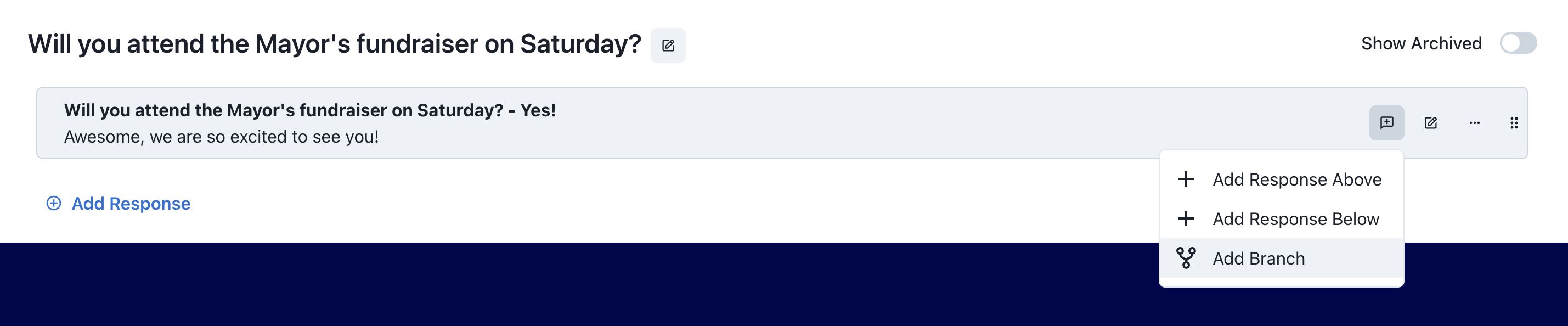
Note: You can also click "Add Response" at the very bottom of the page and drag the question under neath previous questions to have it branch.
When you want to build additional responses to a question, click the message button to the right and select "Add Response Above" or "Add Response Below".

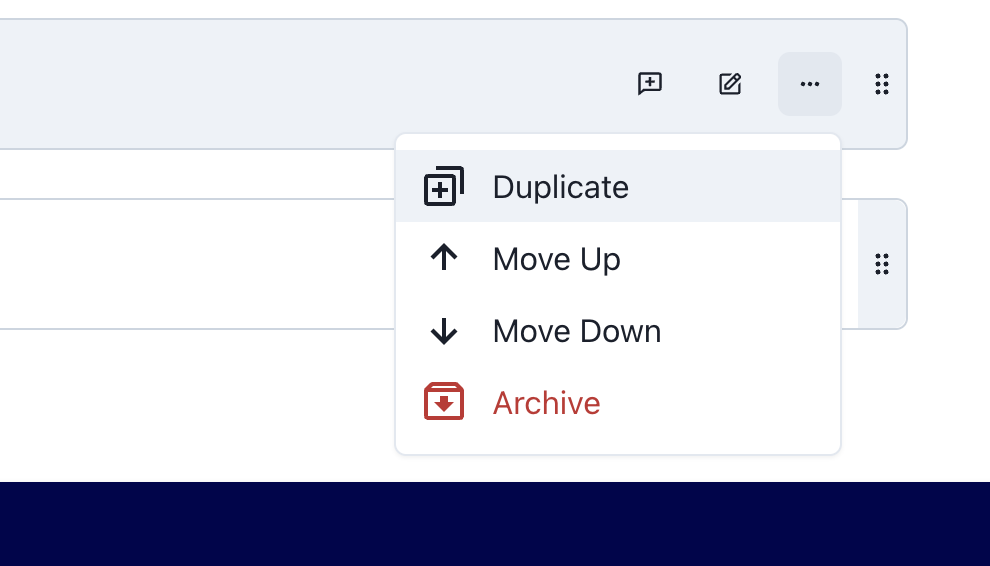
Click the " ... " at the far right of each question to duplicate the question or move the question (and it's corresponding sub-questions) up or down in the order of the script.