Adding Custom CSS to Switchboard Forms
Last updated: May 19, 2025
Adding custom CSS to your Switchboard Forms can help you create highly-branded experiences, stand out from the crowd, and may improve completion rates.
This help document illustrates how to add custom CSS to your forms. It’s written with 2 stakeholders in mind: the person creating the form in Switchboard and the person writing the code. Scroll all the way down to find a template you can copy+paste into your Form (just modify the values to suit your needs!)
For the person creating the form in Switchboard
Creating new forms with custom CSS
Log into Switchboard
Click “Tools” in the upper right
Click “Forms”
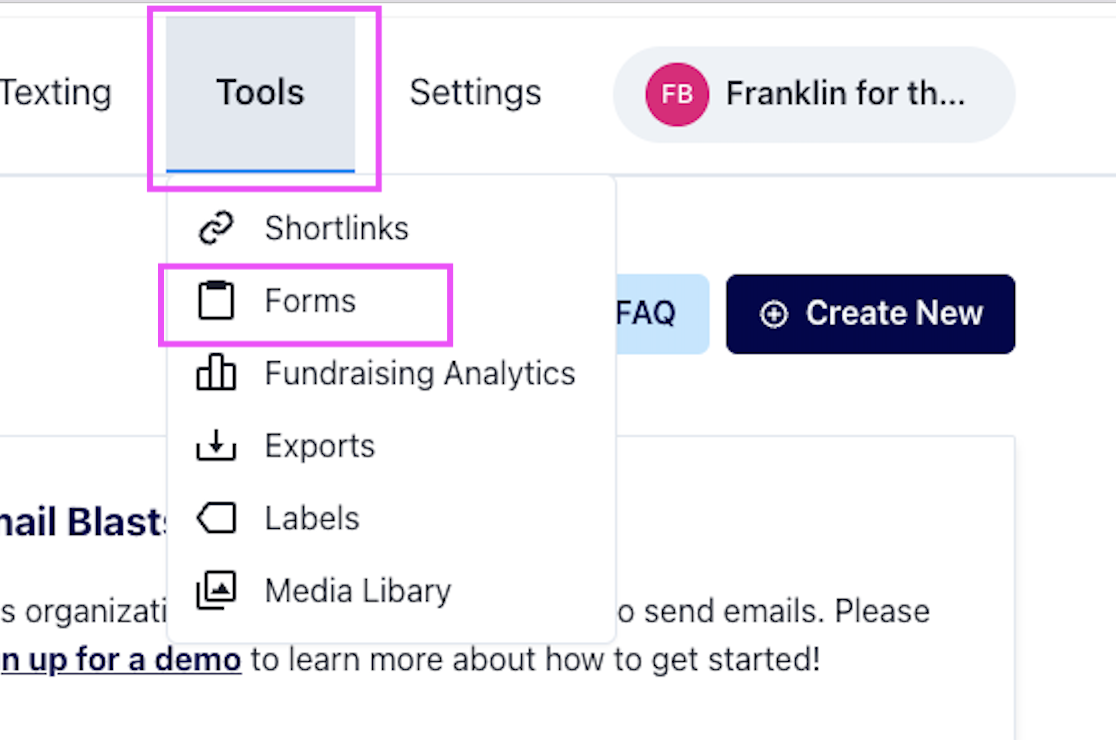
Click “New Form” in the upper right

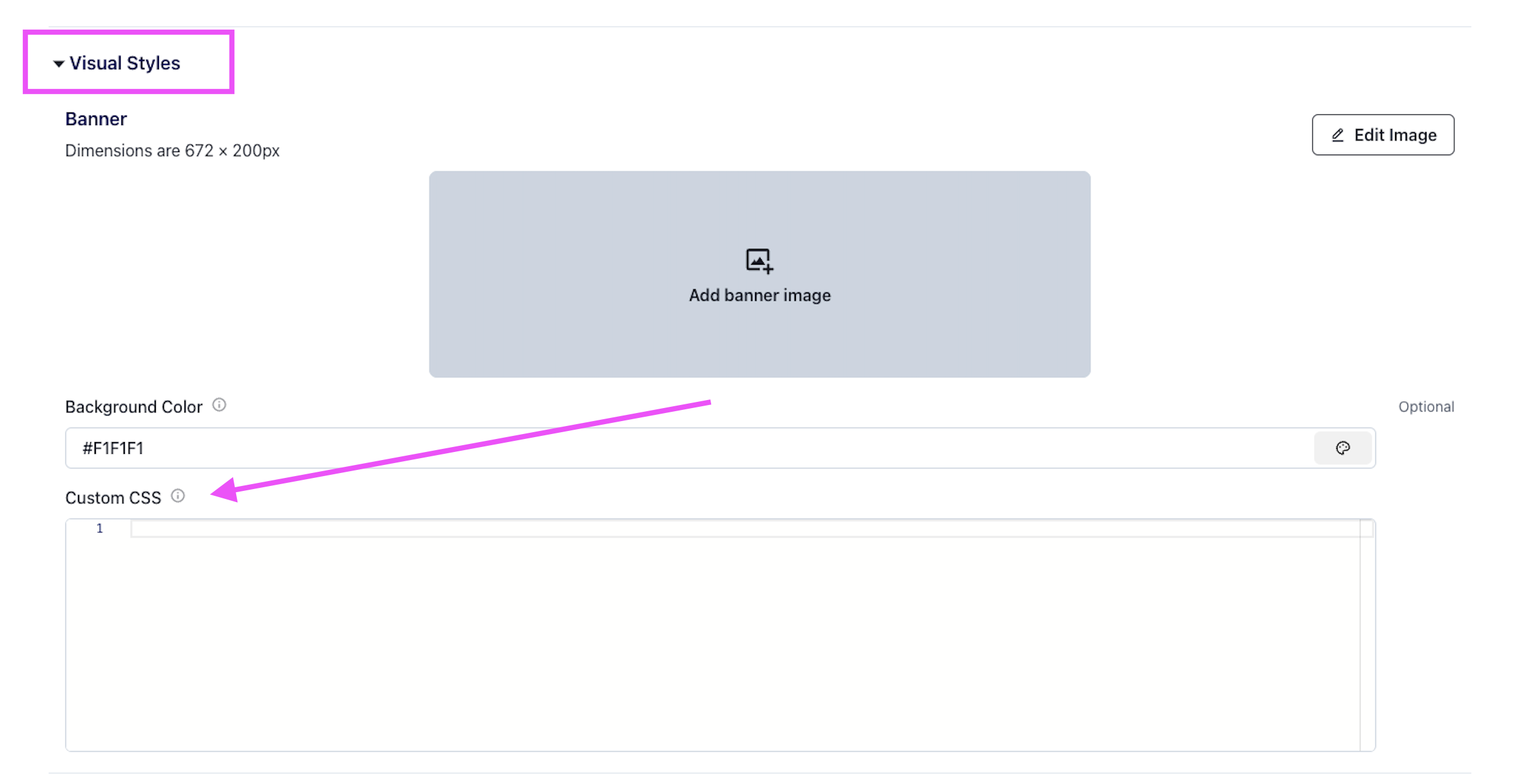
Go to the “Visual styles” section and paste your CSS into the Custom CSS field
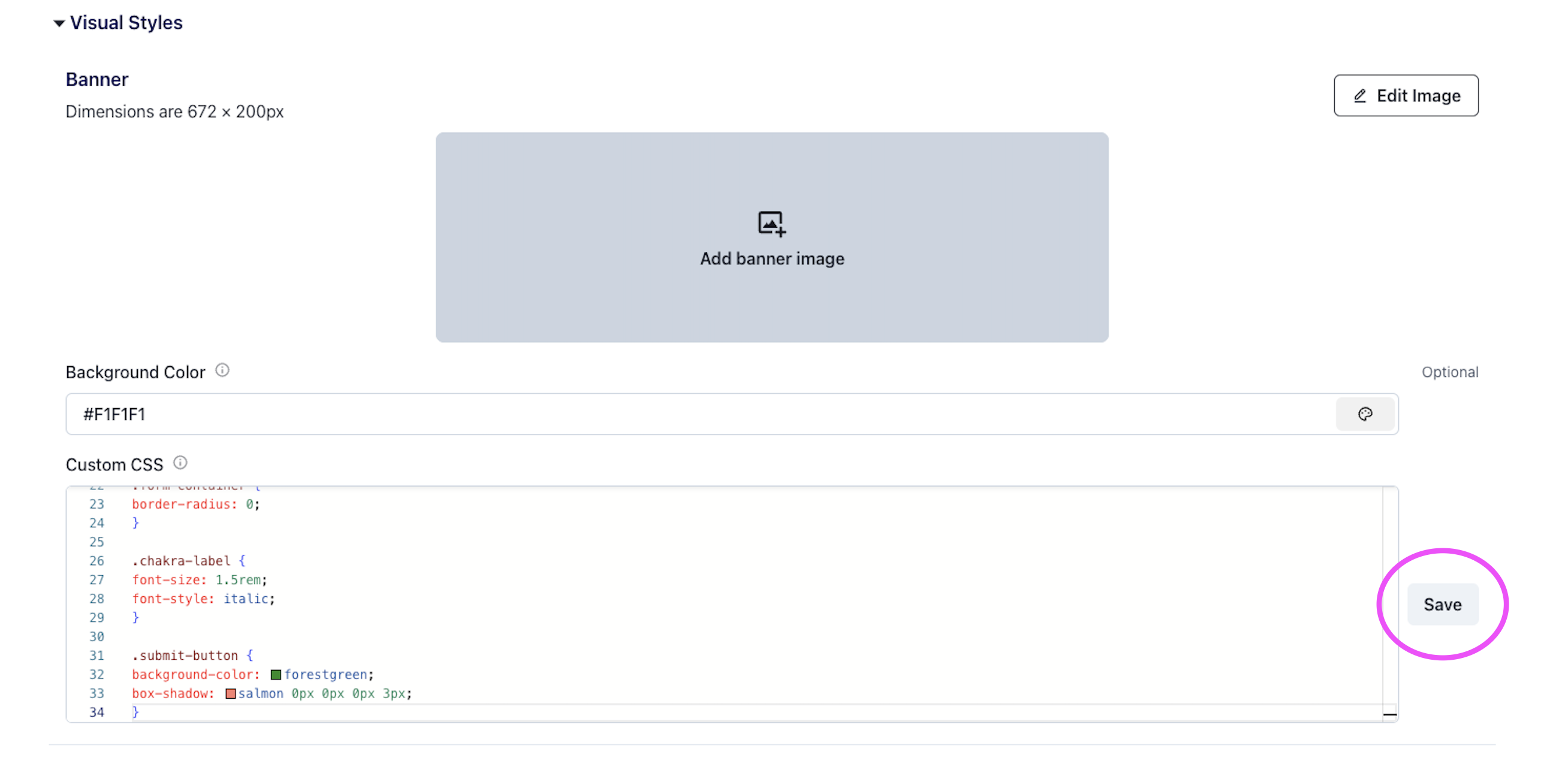
Click the “Save” button to the right of the field
Click “Preview” to preview your form
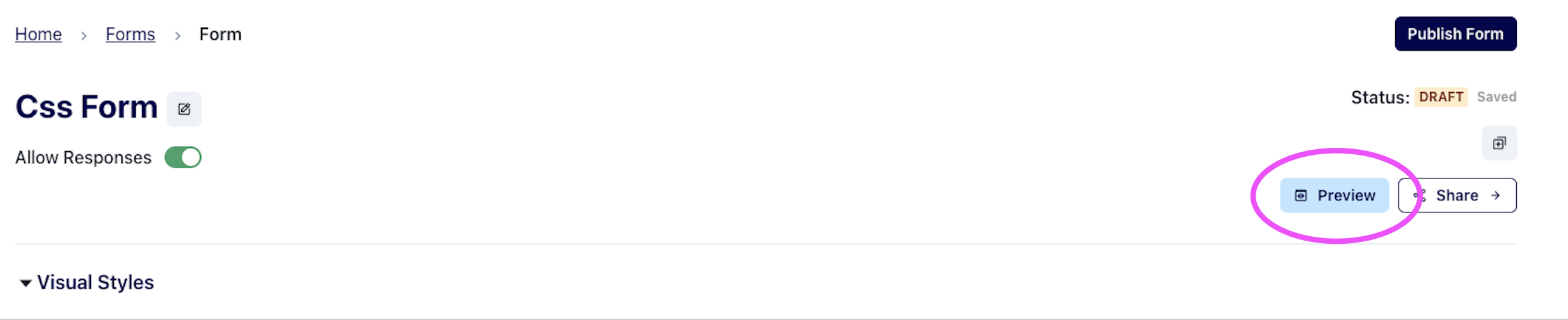
Once you’re satisfied with your form, click “Publish form”

We recommend you make a test submission on both mobile and desktop before sharing your form with supporters (i.e. fill out the form yourself and submit your response)
Editing existing forms
You may add custom CSS to existing forms.
Log into Switchboard
Click “Tools” in the upper right
Click “Forms”
Click on the form you wish to edit
Go to the “Visual styles” section and paste your CSS into the Custom CSS field
Click the “Save” button to the right of the field
Click “Preview” to preview your form
Once you’re satisfied with your form, click “Publish changes”
We recommend you make a test submission on both mobile and desktop before sharing your form with supporters (i.e. fill out the form yourself and submit your response)
Duplicating forms
Duplicating existing forms lets you easily bring your styles over when creating new forms.
Log into Switchboard
Click “Tools” in the upper right
Click “Forms”
Click on the form you wish to duplicate
Click the Duplicate button (in the upper right, below form status)

For the person writing the code
Our forms use Chakra UI v2. You can style elements on the page by selecting the class names from Chakra, the HTML elements, or some additional classes we provide.
Useful CSS selectors
Form Fields
Submit Buttons -
.submit-buttonForm Text Fields -
.chakra-inputorinputForm Paragraph Fields -
.chakra-textareaortextareaForm Checkboxes
.chakra-checkbox- wraps the checkbox and its label.chakra-checkbox__control- styles the box itself.chakra-checkbox__label- styles the text associated with the checkbox option
Form Radio Buttons
.chakra-radio- wraps the radio button and its label.chakra-radio__control- styles the radio button itself.chakra-radio__label- styles the text associated with the radio option
Form Labels -
.chakra-labelorlabelTypography -
h1,h2,h3,h4,h5,p.Note: custom fonts are currently only available with
@import, notlink. For Google fonts click the @import radio and follow the directions there.
Page Layout
Background -
bodyNote:
background-coloris set inline by the configuration set in the Visual Styles section.
Content container -
.form-container- wraps the Header, Description, Form Fields, and FooterHeader -
.form-header- styles the text in the field of the same name under Form ContentDescription -
.form-descriptionFooter -
.form-footerPaid for by -
.form-paid-for-by
Custom CSS template
You might find it beneficial to copy+paste the below template into the custom css field mentioned above. From there, just modify the values to reflect your brand guidelines. The below CSS makes this form. Check out the form to see which parts of the code control which parts of the form.
Template code
/* FONT IMPORT */

@import url('https://fonts.googleapis.com/css2?family=Poppins:ital,wght@0,100;0,200;0,300;0,400;0,500;0,600;0,700;0,800;0,900;1,100;1,200;1,300;1,400;1,500;1,600;1,700;1,800;1,900&display=swap');
@import url('https://fonts.googleapis.com/css2?family=Arvo:ital,wght@0,400;0,700;1,400;1,700&display=swap');


/* TEXT STYLES */

.form-header {
    font-family: "Arvo", serif !important;
    font-weight: 700;
    text-align: center;
    padding-bottom: 12px;
}

p {
    font-family: "Poppins", sans-serif !important;
    font-weight: 400;
}

h1 {
    font-family: "Poppins", sans-serif !important;
}

.form-paid-for-by {
    font-family: "Poppins", sans-serif !important;
    font-weight: 400;
    color: black !important;
}

/* INPUT STYLES */

label {
    font-family: "Poppins", sans-serif !important;
    font-weight: 500;
    font-size: var(--chakra-fontSizes-lg) !important;
    padding: 8px 0px 4px 0px;
}

input {
    font-family: "Poppins", sans-serif !important;
    font-weight: 400;
    font-size: var(--chakra-fontSizes-lg) !important;
}

.chakra-input:hover {
    background-color: #F7FAFC !important;
}

.chakra-input:focus {
    border-color: #2667FF !important;
}


/* BUTTON STYLES */

.submit-button {
    background-color: #2667FF !important;
    color: white !important;
}

.submit-button:hover {
    background-color: #3F8EFC !important;
}


/* CHECKBOX AND RADIO STYLES */

.chakra-checkbox__control:hover {
    background-color: #F7FAFC !important;
}

.chakra-checkbox__control[data-checked] {
    background: #2667FF !important;
    border: #2667FF !important;
}

.chakra-checkbox__control[data-checked]:hover {
    background: #3F8EFC !important;
    border: #3F8EFC !important;
}

.chakra-radio__control:hover {
    background-color: #F7FAFC !important;
}

.chakra-radio__control[data-checked] {
    background: #2667FF !important;
    border: #2667FF !important;
}

.chakra-radio__control[data-checked]:hover {
    background: #3F8EFC !important;
    border: #3F8EFC !important;
}


/* FORM BACKGROUND */

html, body, .form-page {
  margin: 0 !important;
  padding: 0 !important;
  height: 100% !important;
  width: 100% !important;
  background: linear-gradient(130deg,rgba(59, 40, 204, 1) 0%, rgba(63, 142, 252, 1) 100%) !important;
  background-size: cover !important;
  background-position: center !important;
  background-repeat: no-repeat !important;
  background-attachment: fixed !important;
}

.form-container-wrapper {
  background: none !important;
  background-color: transparent !important;
}

.form-container {
  background: #fff !important;
  backdrop-filter: blur(20px);
  -webkit-backdrop-filter: blur(20px); /* for Safari support */
}