SQL Mirror Onboarding
Last updated: June 23, 2026
Looking to understand available fields and data in the SQL Mirror? Check out our Data Documentation! Or is the SQL Mirror missing data you'd like to be able to query? We’re continuing to make improvements to the data available in it, and would love your feedback at support@oneswitchboard.com.
How to set up a SQL Mirror
Switchboard’s SQL Mirror is set up on Google BigQuery, and so will require a Google Cloud Platform account to access.
Steps
Please reach out to support@oneswitchboard.com and provide us with a list of Google Cloud Platform principals (account emails) that you’d like us to grant access to.
Ideally, this is a GCP Service Account email address used by your team or BI tool, and will likely look something like:
my-service-account@my-gcp-project-name.iam.gserviceaccount.comThis will make sure your integration is not tied to personal emails. If you normally do not use Google Cloud, or need help creating a Service Account, let us know!
We can also add any other Google accounts that you would like to be able to access the data directly, such as the individual Google accounts for members of your team doing analytics. Alternatively, you can make a Google Group that we can grant access to the mirror, so that you can add/remove individual emails and users at your leisure!
Once setup is complete, our team will reach out and provide you with the
datasetname for your organization’s mirror (this is BigQuery’s equivalent of a relational database schema).Configuration details:
GCP Project Name:
switchboard-mirrorGCP BigQuery Region:
USdataset name: (we will provide this on setup. usually same as the org name in Switchboard, e.g.
barbie_for_president)
Start querying using your preferred BigQuery SQL interface!
The easiest method is via the BigQuery Console in GCP. Try querying one of the tables, substituting your
{{dataset_name}}with the one provided by Switchboardselect * from `switchboard-mirror`.{{dataset_name}}.broadcasts limit 10How To: Adding
switchboard-mirrorto the BigQuery dataset explorer panelIf you’d like to add the dataset to your Explorer panel in the BigQuery Console so you can view available tables and columns, click “Add”:
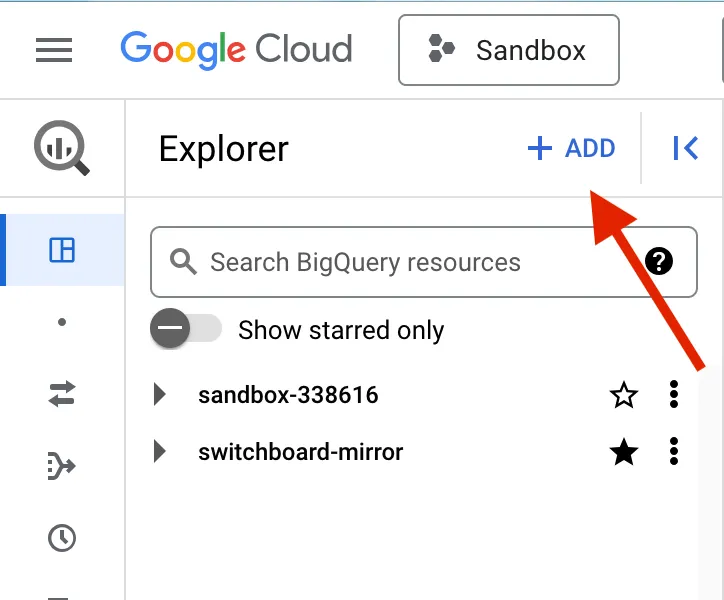
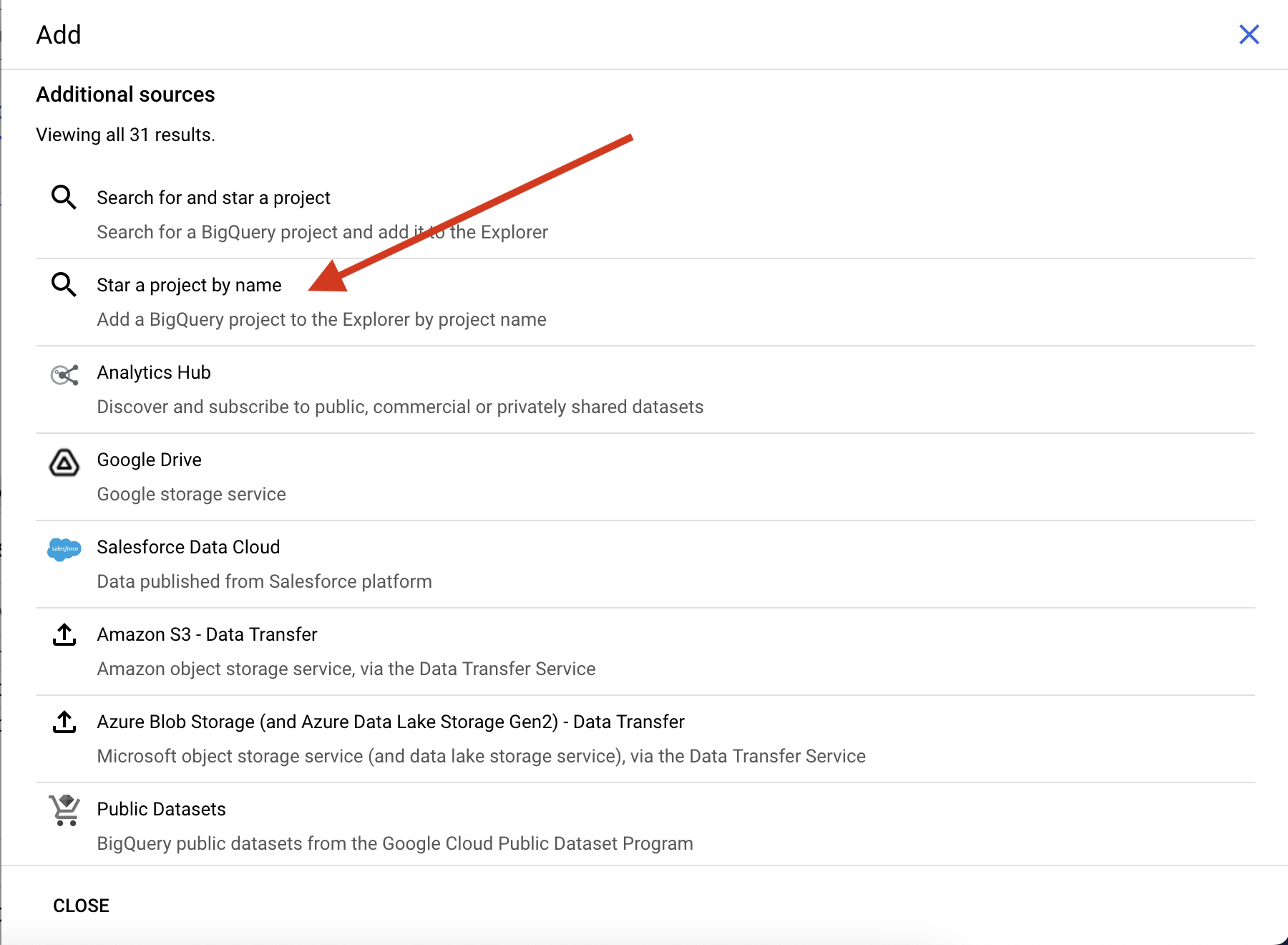
Then select “Star a project by name”
Type in
switchboard-mirrorfor the Project name, and hit “STAR”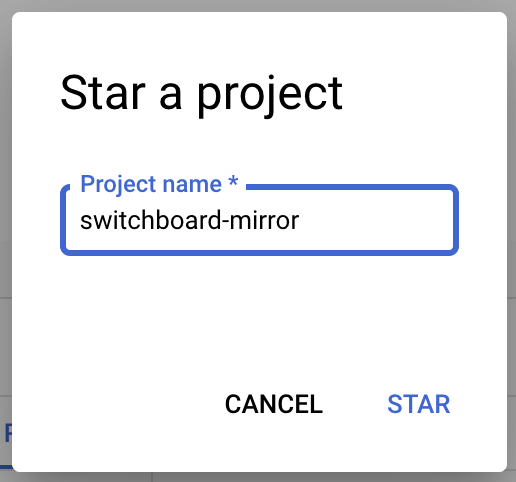
You should then see the
switchboard-mirrorproject in the dataset explorer! If it doesn’t immediately show up, try refreshing the page.
Note that if you manage multiple different organizations in Switchboard, each organization’s data will appear in a separate dataset in the mirror.
FAQ
Q: How frequently are the tables in my SQL mirror updated?
The tables are refreshed hourly.
Q: I’m using Civis Platform for Analytics, and would like to ingest from Switchboard’s SQL Mirror into Civis. How do I set that up?
First, let us know that you are using Civis! In particular, if you need help creating a GCP service account, we can help provide you one that will have the correct access and permissions for the Civis integration.
Then inside Civis itself...
Create a new remote host in Civis for this BigQuery integration, named something like “Switchboard SQL Mirror”
Make sure to use the “BigQuery Connection” type
The project name for the connection URL is
switchboard-mirror
Add a new Database Credential in Civis for the connection
There are instructions for both BigQuery OAuth Credentials and BigQuery Service Account Credentials. We are going to use service accounts.
Name: Switchboard Service Acct Cred
Type: “Database”
Username: the email address of the service account
Password: the full JSON blob for the service account, including the braces
{ }Select the remote host created in step 2
Set “Default” to “True”
At this point you should be able to query the data with that remote host and credential. Most likely what you’ll want to do is set up a Database Import to bring the data into your main Civis database. To do that:
Create a new schema in your Civis database for where you want the Switchboard data to live.
If you manage multiple orgs in Switchboard, each org’s data will be in its own dataset in the SQL mirror. It’s up to you how you want to manage that in Civis, but one recommendation is to create a new schema for each dataset.
For example, in Switchboard’s SQL mirror, let’s say the schema is
barbie_for_presidentwith tablesbroadcasts,phone_messages, etc.In Civis, you may want to create a new schema
switchboard_barbie_for_presidentand then put the tablesbroadcasts,phone_messages, etc in there.And then if there’s a second dataset
ken_for_senate, you can create a new schema in Civisswitchboard_ken_for_senateand put those tables in there.Alternatively you can create one new schema
switchboard, and then prefix your tables in that schema likebarbie_for_president_broadcasts,barbie_for_president_phone_messages,ken_for_senate_broadcasts,ken_for_senate_phone_messages, etc
Set up the Database Import jobs
On the top navigation menu, click Data, and then under Imports, select "Database.”
Select the new Remote Host you created as your source (e.g. “Switchboard SQL Mirror”)
For the schema name, that is dataset name that we’ll provide you with, e.g.
barbie_for_president.For the tables available under each schema, see the list of tables above!
Specify the name of the destination schema and table for where you’d like the data to land in your Civis database.
In order to make these imports efficient, there are Advanced Settings you might want to set on each table import.
For larger tables (such as
phone_messages), it might be more efficient to not do a full refresh on every run, and instead sync incrementally. You can set “Full Refresh on Each Run” to No. And then most tables have a primary key (id) and a Last Modified Columnmodified_at. There are a few exceptions:Append only tables:
actblue_donationsandphone_message_actionsare append-only, and you can configure their incremental syncs using these columns as the “Last Modified Column”:actblue_donations.paid_atandphone_message_actions.created_atand don’t set a Primary Key.Different primary key:
phone_messagescurrently has a primary key calledunique_key, notid. We will be adding anidcolumn soon as well, for simplicity.
If you’re managing multiple organizations on Switchboard, so you have multiple datasets that you need to import, one option is to create a Database Import job for one of the datasets, and then Duplicate it. Then you can just update the schema name in the import job, but keep all of the other settings
Q: The mirror is missing data that I need for my program. How can I request additional columns or tables be added?
Please reach out to support@oneswitchboard.com with your requests! Please provide as much context as you can about your use case for the data, it will help us make more useful improvements.