Add, Edit, and Remove Users
Last updated: November 13, 2025
How to Add New Users to Switchboard:
Note - Owners can update the status of any other user, even other Owners.
Go to the members setting page.
Click Invite New Members
This will open a window on your page. Add the email(s) of the people you want to add in the box under “Email Addresses”
Select the roles for the new user(s) at the organization level
Set feature-level permissions as needed
Click Send Invitation to invite your new team members!
This is at the bottom of the window, you will have to scroll down.
Bulk User Management
If you need to add users to multiple organizations at once, you can use the bulk invite feature at Settings > Organization Settings. This allows you to select permissions and add users to all your accounts in one step.
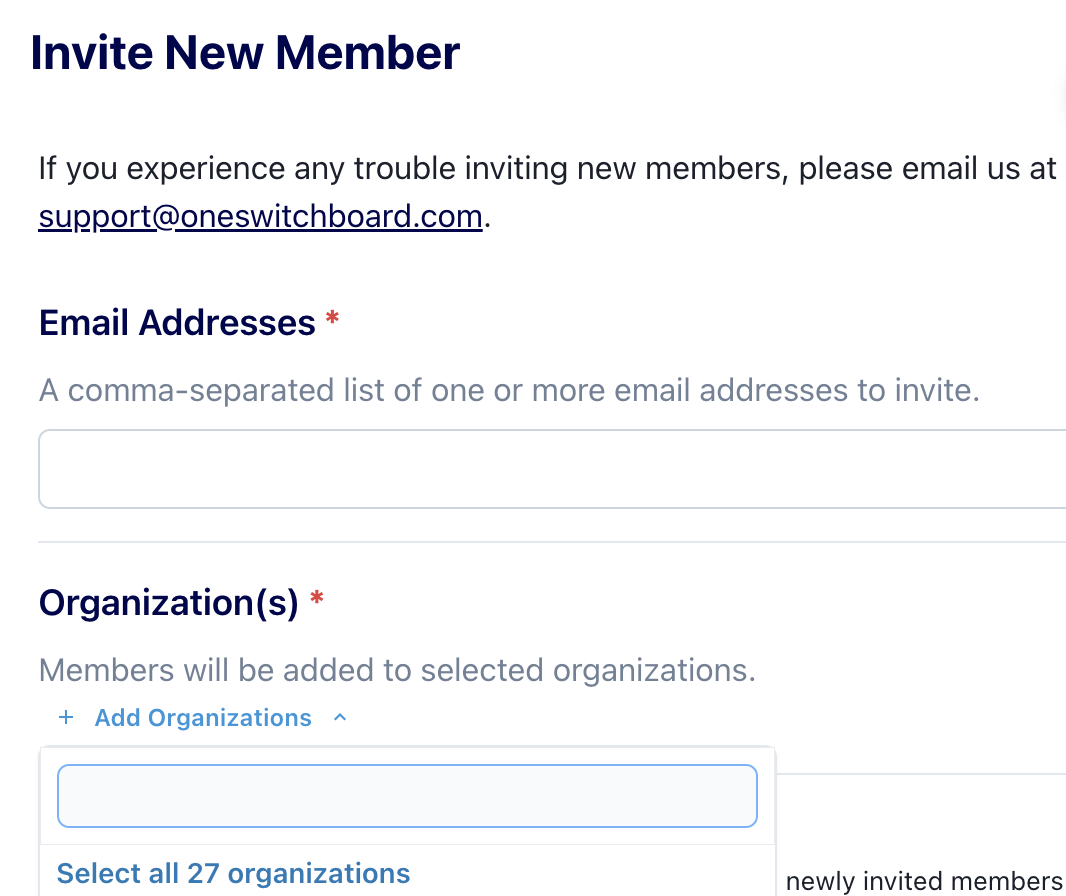
Note, you are only able to bulk invite members to multiple Switchboard organizations with the same role. If you want different users to have different privileges you will need to add them individually.
How to Edit Member Permissions:
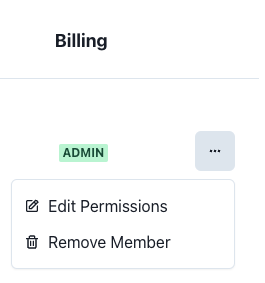
Click the three dots to the far right of their row and click Edit Permissions and select the updated permissions for this member.
How to Remove a Member:
Find the member who you want to remove
Click the three dots to the far right of their row
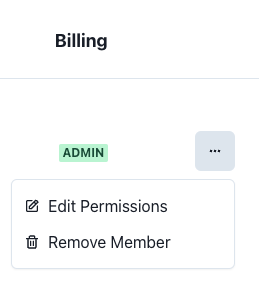
Click Remove Member