Personalizing forms with reusable fields
Last updated: May 4, 2026
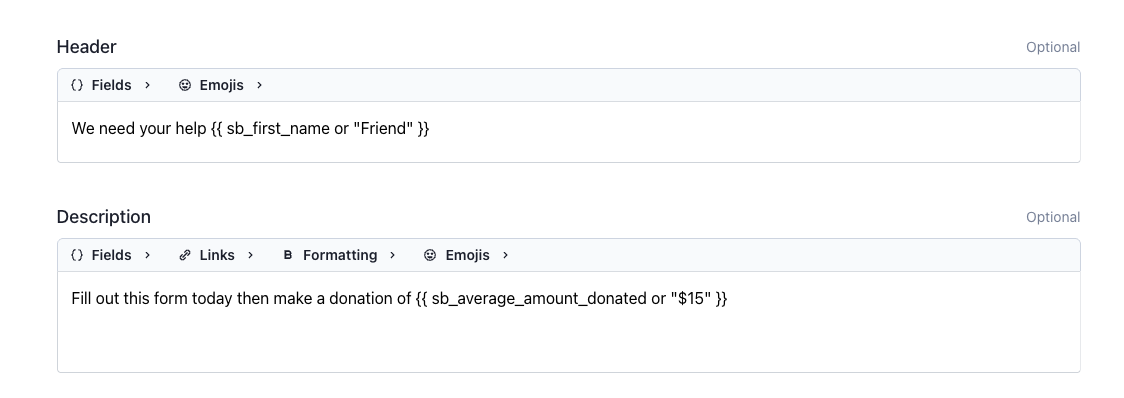
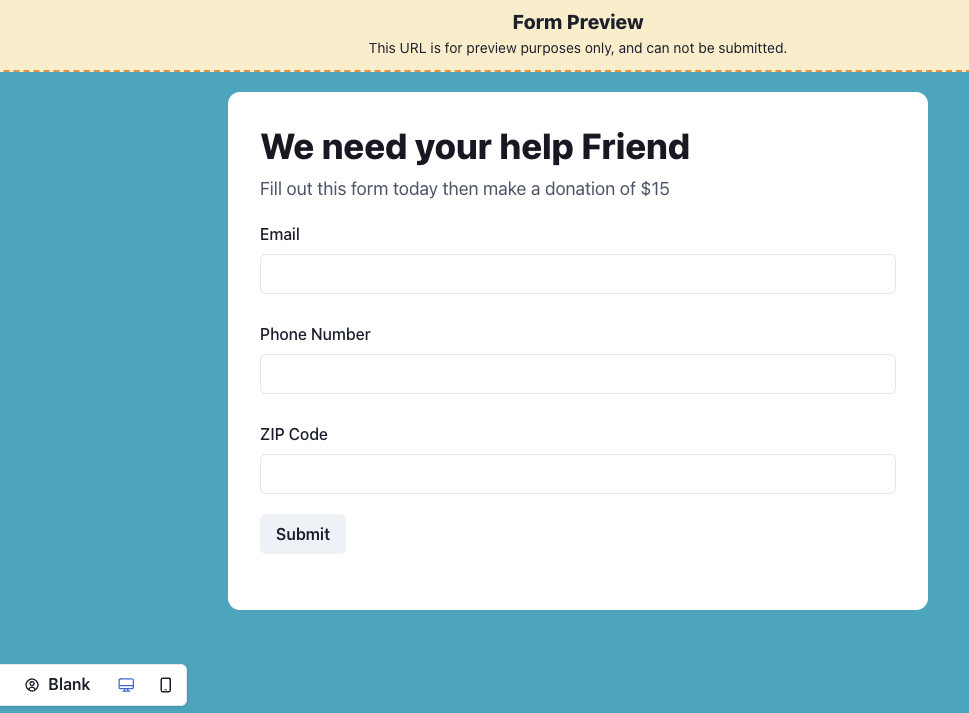
Our Form editor lets you add reusable fields to your header and description, so you can personalize the Form for each individual supporter.
Below are instructions for supplying values so these fields are populated when your supporter visits the Form.
Option 1 - Supply info via token
Only works if sending via Switchboard.
Make sure the list/audience you're using for the send has the fields you've added to your Form (if you design a Form similar to the one shown above, you'd want your list to have columns for First name and Average amount donated)
When composing your message, insert your Form link as an sb_link
Send!
Option 2 - Supply info via URL parameter
Useful when sending the Form via another platform. You'll have to reference the other platform's syntax to compose the value.
key |
sb_first_name |
sb_first_name |
sb_middle_name |
sb_full_name |
sb_preferred_name |
sb_zip_code |
sb_state_abbr |
sb_total_amount_donated |
sb_total_donations |
sb_average_amount_donated |
sb_max_amount_donated |
sb_most_recent_donation_date |
sb_most_recent_zip_code |
sb_phone |
sb_email |